Pictor Show & Tell Recap: Building a Fully Branded McDonald’s Photo Booth From Scratch
Pictor founder Nicholas responds to a mock DM from Ronald McDonald and builds a completely branded McDonald's photo booth in under an hour — global styles, custom AI prompts, branded templates, virtual booths, and microsites. Here's the full tactical recap.

Eve Martin
Recap from our April 1, 2026 Show & Tell
Every Wednesday, we host a live Show & Tell where Pictor customers bring real projects, ask real questions, and build alongside us in real time. This week we took it one step further: Pictor founder Nicholas pretended Ronald McDonald himself had slid into his DMs asking for a fully branded McDonald’s photo booth — and then built the entire thing live, from zero to shippable, in under an hour.
If you’ve ever fought with photo booth software that forces you into “close enough” branding, this recap is your playbook. And if you’re evaluating photo booth software to license for your own company, this is what operator-first design actually looks like under the hood.
Why This Demo Matters
Pictor is, to our knowledge, the only photo booth software actually run by a photo booth company. That shapes every decision in the app: a true WYSIWYG so operators aren’t dropping into code, a simulator mode that eliminates tab-switching friction, and near-total brandability of every surface guests see — from buttons and modals all the way to reply-to email domains on white-label plans.
Attendee Matt kicked off the session with the question every prospective client really wants answered: “What can’t we brand inside Pictor?” Nicholas’s honest answer after 15 years in the industry: almost nothing. The guardrails that do exist (like locked logo heights) exist specifically because removing them would break layouts downstream. Everything else is yours to shape.
Step 1: Extract the Brand Assets Fast
Every branded corporate build starts the same way: Google “[brand name] brand guidelines.” Nine times out of ten, big brands publish a vendor-facing PDF with hex codes, logos, typography, and usage rules. McDonald’s has one. Coca-Cola has one. Most Fortune 500s do.
For the demo, Nicholas pulled:
- McDonald’s red: #DA291C
- McDonald’s yellow: #FFC72C
- Golden arches logo (PNG)
- Cheeseburger product shot
- An arches-skyline background image
The Brand-Extraction AI Prompt (Yours to Steal)
To speed up asset gathering even further, Nicholas shared the custom brand-audit prompt he built over the last year. Version 6.3 runs inside ChatGPT or Perplexity and auto-pulls hex values, fonts, logos, and social-media style cues into a structured spec sheet — ready to paste straight into Pictor’s global styles.
Drop in a brand name and URL, run it, and let the AI do the research for you.
📋 Copy Nicholas’s Brand-Extraction Prompt (v6.3) — click to expand
You are a brand and UI systems auditor and a front-end design systems engineer.

Task: Extract a brand-aligned UI and social media spec sheet for this brand that is immediately usable by a developer or designer. Every single field must have a concrete, actionable value. No field should ever be left blank or marked "Not publicly specified" without also providing a best-guess fallback value.

Brand name: [BRAND NAME]
Primary reference URLs (if known): [PASTE brand site / brand-book links or leave blank]
Audit date: [YYYY-MM-DD]

0. Pre-flight check
- Check whether the brand's official guidelines portal requires a login or partner access.
- If the guide is fully or partially paywalled/login-gated, flag this at the top of your output with: ⚠️ Brand guide gated: [describe what was and was not accessible] and fall back to Website-observed and Social-observed sources.
- If the guide is fully public, proceed normally.

1. Search and evidence collection
- Find the brand's official brand guidelines or design system (PDFs, brand books, design system sites).
- Open the brand's main marketing/consumer site and any web app.
- Inspect live production CSS and DOM for concrete token values — hex colors, px values, font names, border radii.
- Find and open the brand's official verified social accounts: Instagram, TikTok, X/Twitter, Facebook, YouTube, LinkedIn.
- Ignore third-party Dribbble/Figma concepts or speculative redesigns.

2. Core output rule — no empty values, ever
- Every field must have a value in the Value column.
- Official source → Brand-guideline confirmed.
- Observable in production CSS/DOM → Website-observed.
- No official or observed value → derive a Best-guess from the brand's palette/style and mark with a one-line rationale.
- Never write "Not publicly specified" as the only value. Always provide a best-guess.
- All colors → 6-digit hex. All sizes → px unless the spec uses rem.

3. Fields to populate — output four separate markdown tables in order:

TABLE 1 — Brand & UI Tokens
Columns: Category | Spec | Value | Unit | Confidence | Status | Evidence source | Notes
Cover: typography & text colors, brand palette, buttons, modals & overlays, spacing & layout tokens, motion & animation, icon & illustration style, layout & backgrounds.

TABLE 2 — Logo & Asset Inventory
Columns: Asset | Format(s) | Link | Color variants | Min clear-space | Confidence | Status | Notes

TABLE 3 — Social Media Presence
Columns: Platform | Handle | Profile URL | Followers | Verified | Profile image description | Bio text | Link-in-bio URL | Confidence | Status | Notes

TABLE 4 — Social Media Content Audit
Columns: Platform | Posting frequency | Primary content format | Primary content themes | Branded hashtags | Story highlights | Pinned post topic | Top performing content type | Paid vs organic | Partnership tagging pattern | Brand voice/tone | Recurring series | Cross-platform consistency | Competitive differentiator | Notes

4. Evidence tiers
- Brand-guideline confirmed → official docs
- Website-observed → live production CSS/DOM
- Social-observed (YYYY-MM-DD) → live official profile on stated date
- Best-guess → no official/observed source; rationale required

Confidence: High (official docs), Medium (inferred with certainty), Low (directional — verify before shipping)

5. Output rules
- Output the four tables in order with bold headers.
- Begin with the ⚠️ Brand guide gated flag (if applicable) and the Audit date line.
- No prose before/after the tables beyond the flag and date.
- Never leave a Value cell empty.
- All colors → 6-digit hex. All sizes → px. Note originals if converted.
- Competitive differentiator → one sentence max per platform.
Other tools Nicholas uses in this step:
- A screen color-picker for grabbing hex values off PDFs and websites
- TinyPNG for compressing backgrounds and logos destined for virtual booths — anything loading on guest phones should be as small as possible
- Photoshop (or Photopea) for knocking out backgrounds on logos that don’t ship with transparency — McDonald’s golden arches needed a two-minute transparency cleanup before going into Pictor
Step 2: Set Global Styles
Inside the event, Nicholas navigated to Flow → Global Styles — the single screen that controls how branding cascades across every stage of the guest experience. One change to the global background propagates through every screen automatically.
Simulator Mode: Shave Seconds, Save Hours
Before changing anything, Nicholas opened Simulator Mode in a second browser tab. This is one of those small features that pays off over a full season — instead of publishing and previewing repeatedly, the simulator auto-refreshes as you make changes.
“Shave seconds off, which turn into minutes and hours over the course of a year. Even switching back and forth from tab to tab is what we’re talking about.” — Nicholas
Full live preview is in development, targeted (unofficially) for Q3. Simulator mode is the current workflow — and honestly, once you have it in a second monitor, you barely miss anything.
What Got Configured Globally
| Element | McDonald’s Setting | Why It Works |
|---|---|---|
| Background | Branded arches-skyline image | Anchors every screen in the brand world |
| Logo | Top-left PNG, transparent, fixed width | Width is editable (upload wider to go wider), height is locked on purpose |
| Primary button | #FFC72C yellow, border radius 40–90 | High contrast, pill-shaped to match McDonald’s site |
| Secondary button | #DA291C red | Classic ketchup-mustard combo, reinforces the brand |
| Button border | 1px black | Clean separation on busy backgrounds |
| Modal | Blue #0066CC, radius 40, 90% opacity | Depth without clutter — transparency lets the background breathe |
| Font | Poppins Bold (any Google Font or TTF upload works) | Close enough to McDonald’s proprietary type for a one-night activation |
Font tip: Pictor ships with the full Google Fonts library built in, and you can upload any .ttf file for true brand parity. If you don’t know what font a brand uses, WhatTheFont can identify it from a screenshot.
Want to try this yourself? Every feature in this post is available on a free Pictor trial. Start your free trial at app.pictor.pro/register →
Step 3: Customize Individual Flow Stages
Global styles are the foundation. The magic happens when you override them stage-by-stage to build a narrative inside the experience. Pictor’s flow stages are fully modular — you can add, remove, duplicate, and reorder them freely.
The stages Nicholas used in the McDonald’s build:
- Media Screen — attract loop or interstitial video
- Terms of Service — branded TOS with agree/disagree buttons
- Survey — capture a guest’s name to personalize overlays
- Folder Chooser — branching “choose your own adventure” paths
- Capture — photo or video capture stage
- Thank-You / Text Screen — branded confirmation
- Share Screen — email, SMS, or QR-code delivery
- Webhook / Paywall — Stripe tap-to-pay or third-party integrations
The Media Screen Trick Most Operators Miss
Most booth software has a single “attract screen.” Pictor calls it a Media Screen on purpose — because you can drop one anywhere in the flow. Nicholas placed one right after capture as a 10-second branded ad (“This experience was brought to you by Pictor. Enjoy your complimentary snack wrap, friend.”) that timed out automatically — no button required.
This is how you turn a photo booth into a sponsored media surface. Imagine McDonald’s launching a new menu item and every post-capture screen across 14,000 locations playing a 5-second teaser before the guest gets their photo. That’s a media buy brands will pay real money for.
Choose-Your-Own-Adventure With Folders
Nicholas added two folders inside the experience:
- McChicken — chicken thumbnail, leads to AI photo template
- Burgers — video-camera thumbnail, leads to AI video template
Each folder becomes a branching path. One guest gets a photo of themselves in a McDonald’s uniform. The next guest gets a 5-second AI video of their whole group eating fries. Same booth, same event, completely different outputs.
Pro tip from the Q&A: Folder thumbnails can be videos, not just static images. Use that for cinematic branching moments on attract loops.
Step 4: Build Branded Templates (With Math)
Templates are where Pictor’s template editor earns its keep. Nicholas built a 1:1 square template (because “Ronald loves a square”) with six layers:
- Capture frame — 1600×1600
- AI output — sized to match the frame exactly using math-based positioning (
width=1600, height=1600, x=0, y=0) - Original photo — shrunk to a “postage stamp” in the bottom-right corner so guests see both the real capture and the AI version
- Branded overlay — burger PNG + golden arches logo
- Dynamic text — “Employee of the Month [name]” pulled from the Survey stage via tokens
- Drop-shadow duplicate — black copy of the text layer, offset 5px, sent behind the white original for instant typographic depth
The drop-shadow trick is worth memorizing: duplicate the text layer, change the duplicate’s color to black, nudge it 5px down and to the right (from Y 31 to Y 36 in the demo), send it behind the original. Real drop shadow, 30 seconds, no design tool required.
The AI Photo Prompt
Nicholas uses Pictor’s custom prompt system to lock the AI to the brand. For the McChicken photo branch:
“Photorealistic McDonald’s uniform, preserve exact face, pose, and expression.”
The critical phrase: “preserve exact face, pose, and expression.” Without it, the AI wanders off and you lose guest likeness — the fastest way to get a corporate client to ask for their money back.
A surprise the demo surfaced: even if a guest only gives the camera a headshot, the AI fills in the rest of the body, complete with branded wardrobe. Guests walk up in street clothes and walk away wearing a McDonald’s uniform they never put on.
The AI Video Prompt (5 Seconds, Eye-Locked)
Video is newer and needs more finesse. Nicholas’s prompt for the burger branch:
“Everyone posing for a photo and then eating McDonald’s fries. Everyone keeps eye contact with the camera, which is making slow camera movements. Negative prompt: blurry.”
Mid-demo, Nicholas dropped a critical insight about how AI video booth software works in general: each frame of a generated video is built from the previous frame. The longer the clip, the more the likeness degrades. Two tricks to preserve faces:
- Lock the eyes to camera. The AI has less reason to drift the face when the eyes are anchored.
- Use slow camera movements. Jump cuts force the model to regenerate from memory — which, in 2026, you still can’t trust for likeness.
Render time for the 5-second fry-eating video: about 1 minute. The anatomy of the fries was “not exactly still” in Nicholas’s words, but the result was fun, on-brand, and shippable — exactly what you’d want for a viral activation.
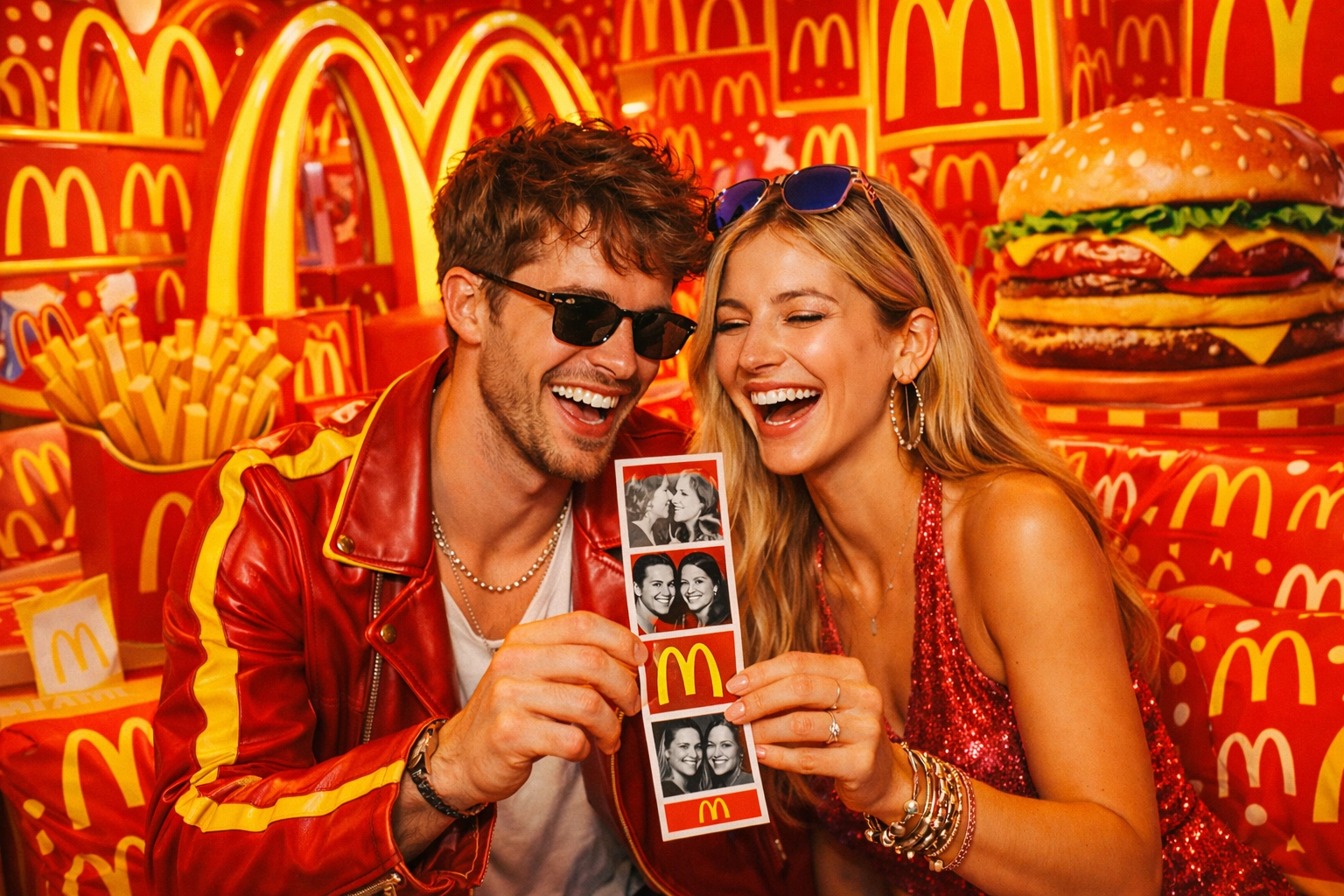
Ready to build your own AI photo booth experience? Start a free Pictor trial — AI photo and video generation are included in every license, no per-render fees.
Step 5: Outputs, White-Label, and the Microsite
Capture is only half the job. The other half is delivery — and for corporate clients, delivery is the brand moment that gets shared on social. Pictor handles this with a full stack of white-labelable outputs.
Branded Emails
Email templates live inside the Share flow stage (moved there based on user feedback — previously they were in a separate settings pane). The WYSIWYG is the same as everywhere else: drop in a logo, match your brand colors, set your copy. Two best practices from the demo:
- Keep email simple. Different email clients render HTML wildly differently. Don’t put background images or fancy colors behind your content — throw the guest to a branded web page instead, where you have full control.
- White-label the reply-to domain, but warm it up first. If you’re sending from
photos@clientdomain.comon a white-label plan, start warming that domain weeks before the event or you’ll land in spam folders.
The Virtual Booth (Auto-Branded)
This was one of the biggest “oh wow” moments in the live demo. Because Pictor’s virtual booth inherits your event’s global styles automatically, the second Nicholas finished branding global styles, the virtual booth was already branded. No second configuration pass. One QR code later, webinar attendees were scanning into a McDonald’s-branded experience and generating their own fry-eating AI videos in real time.
Important Q&A note: Pictor intentionally makes it hard to download the virtual booth QR code as a static image. Why? Because if you print a static QR code and then need to change the endpoint, you’re stuck. Nicholas recommends piping the virtual booth URL through a service like Bitly (or any link shortener that lets you change the destination) before printing anything. The screenshot path still works if you need it fast — treat it as testing-only.
The Microsite Gallery
Every Pictor event ships with a public microsite gallery out of the box. Nicholas dropped the McDonald’s logo in the header and footer, set “I’m Lovin’ It” as the page header, and saved. Done. Guest photos and videos from the live webinar flowed into the gallery immediately, all wearing the branding.
The Slideshow (Resizes With the Screen)
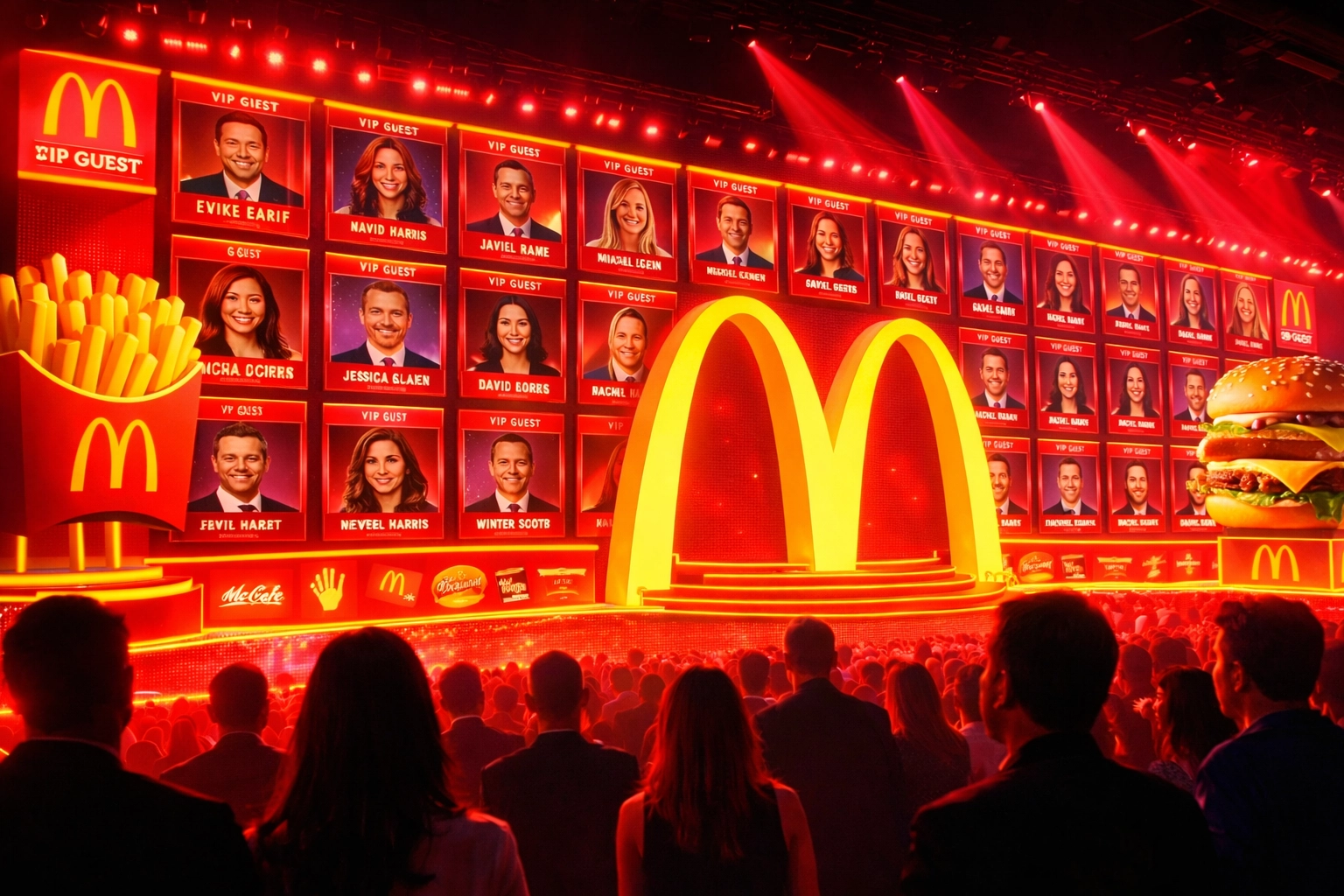
Nicholas’s favorite output tool is the live slideshow, built for on-site displays like 75″ TVs at venue entrances. Key features demonstrated:
- 3×1 grid for horizontal screens, 1×2 grid for vertical screens
- Rotating ads every 10 seconds (cheeseburger, McChicken) plus full-screen takeovers once per hour
- Automatic aspect-ratio adaptation — switch from landscape to portrait and the slideshow reflows without a rebuild
This is the kind of detail that separates photo booth software built by operators from photo booth software built by engineers who’ve never worked a 10-hour event. Every operator has been burned by rebuilding assets twice because a client switched screens mid-day.
Paywalls and Webhooks
Nicholas flagged — but didn’t fully demo — Pictor’s paywall and webhook stages. The scenario he pitched: “McDonald’s wants to install old-fashioned photo booths in every store, but guests pay per use.” Pictor supports Stripe QR-code or tap-to-pay paywalls out of the box, on either the operator’s Stripe account or the client’s. Webhooks let you fire off custom integrations at any stage of the flow.
Troubleshooting Cheat Sheet
| Issue | Fix |
|---|---|
| Buttons look ugly | Set border radius between 40–90. Don’t resize height — it breaks flow stage proportions. |
| AI photo loses guest likeness | Add “preserve exact face, pose, and expression” to the prompt |
| AI video loses likeness partway through | Lock eyes to camera, use slow movements, avoid jump cuts |
| Virtual booth loads slowly on guest phones | Compress all PNGs through TinyPNG, keep AI prompts concise |
| Logo doesn’t have transparency | Knock out background in Photoshop or Photopea (2-minute fix) |
| Can’t identify a client’s font | Use WhatTheFont or upload a custom TTF directly |
| Need a drop shadow on text | Duplicate the text layer, change color to black, offset 5px X and Y, send to back |
| QR code won’t download as an image | Intentional — always run QR codes through a dynamic link shortener like Bitly so you can re-point the URL later |
Live Q&A Highlights
A few gems from the audience worth surfacing:
“What can’t we brand inside Pictor?” — Almost nothing. Reply-to email domains, modal colors, button shapes, fonts, overlays, galleries, slideshows, virtual booths, and microsites are all brandable. Even emails sent from a white-label license can use the client’s domain (just warm it up first).
“Can folder thumbnails be videos?” — Almost certainly yes. Nicholas hadn’t tested it on camera but flagged it as either working today or a tiny mod away.
“When is live preview shipping?” — No hard promises (Nicholas refuses to give estimates — “the best way for me to disappoint you”), but hopeful for Q3.
“Can I download the virtual booth QR code?” — Intentionally gated. Use a dynamic link shortener so you can re-point the URL later if the event changes.
“Can I resize the logo?” — Width yes, height no. Upload a wider image to make the logo wider; height is locked on purpose to prevent the rest of the flow from breaking.
Why This Matters If You’re Shopping for Photo Booth Software
If you’re an existing Pictor operator, everything above is a tactical playbook. Steal the workflow. Clone it for your next corporate client. Paste the brand-extraction prompt into your AI tool of choice and cut 90 minutes off your next event setup.
If you’re evaluating photo booth software for your own company — whether for iPad rigs, DSLR booths, PC installations, or fully virtual activations — here’s what this demo is really showing you:
- One license covers everything. Photo, video, AI photo booth software, AI video booth software, virtual booth, microsite, slideshow, paywall, webhooks. No upsells, no per-render fees, no “that feature is on the enterprise plan.”
- It’s hardware-agnostic. iPad, DSLR, PC — same experience, same branding, same outputs. Pictor is simultaneously iPad photo booth software, a PC solution, and a browser-based AI photo booth app.
- It’s built by operators, for operators. Every shortcut, every “shave seconds” decision, every WYSIWYG, every locked height on a logo field — those come from Nicholas and the Outsnapped team running real events for 15 years.
- Corporate clients are the upside. Most photo booth software treats branding as an afterthought. Pictor treats it as the primary product, because corporate activations are where the margins live.
Get Started
👉 Start a free Pictor trial: app.pictor.pro/register — spin up an account, clone this McDonald’s build in your own dashboard, and have a branded AI photo booth running in under an hour.
👉 Join the next Show & Tell: Nicholas runs these live every Wednesday. You’ll get tactical demos like this one, direct Q&A with the founder, and a first look at features still in beta. Reserve your seat →
👉 Watch the full recorded session: YouTube recap — every click, every prompt, every mistake, and the full Q&A.
👉 Grab the brand-extraction prompt: It’s in the collapsible block near the top of this post. Copy it, paste it into ChatGPT or Perplexity, drop in your next client’s brand URL, and let the AI do the asset-gathering for you.
Got a branded build you’re proud of? Reply to this post or tag us — we’ll feature the best ones in an upcoming Show & Tell.
Nicholas Rhodes
Founder of Pictor & OutSnapped
Nicholas is the founder of Pictor and OutSnapped—a premium photo experience agency producing AI activations, red-carpet productions, and branded content for global events. He hosts Pictor Show & Tell almost every Wednesday.
Nicholas has produced thousands of branded photo experiences for global clients through OutSnapped and builds the tools operators use daily at Pictor.