Simple Mode vs Template Editor: When to Reach for Each (and Why We Built Both)
A decision guide for Pictor operators: when to use Simple Mode for fast single-overlay setups vs the Template Editor for layered, branded, multi-capture builds. Plus the one-rule mental model that covers 95% of cases.

Eve Martin
This week, Pictor founder Nicholas Rhodes built out a client event in five fewer minutes than usual. He didn’t get faster in the Template Editor. He skipped it entirely and used Simple Mode — a mode he normally reaches for about 2% of the time.
That small moment is actually the whole philosophy of how Pictor photo booth software approaches event setup, compressed into a single anecdote. And it’s the reason this post exists: to help Pictor operators figure out which of the two event-configuration modes — Simple Mode or the Template Editor — they should reach for on any given job, regardless of how experienced they are with the platform.
If you’re new to Pictor and trying to pick your first workflow, this guide will save you a few rounds of trial and error. If you’re a power user who lives in the Template Editor, this might change how you think about Simple Mode. Either way, by the end of the post you’ll have a clean mental model: one layer or many.
Why Pictor has two modes in the first place
A little backstory, because it matters.
Pictor exists because other photo booth software companies kept telling our founders that corporate clients didn’t actually need the things they were asking for. Generative AI outputs. Branded modals. Dynamic text overlays tied to survey answers. Multi-layer templates with math-based positioning. Custom AI prompts per template. White-label microsites. Paywalls. Webhooks. The list went on. The industry’s answer was *”that’s not a feature we build.”*
So we built it ourselves — and along the way, Pictor ended up with a feature set most photo booth software had never shipped before. The Template Editor in particular is, practically speaking, a full graphic-design suite inside an event-flow builder. Layers, effects, background removal, text variables pulled from survey responses, postage-stamp layouts, custom prompts, drop shadows, the works.
Here’s the catch. When you ship a tool with capabilities operators have never had access to in other platforms, some operators coming in from those other platforms run into an unfamiliar workflow. They’re looking for the muscle memory they already have: “I have a PNG overlay, I want to put it on every photo, I want to be done in few minutes.” That workflow exists in almost every photo booth software on the market. It should exist in Pictor too.
That’s why Simple Mode exists. It’s not a “lite” or “beginner” version of the Template Editor. It’s a parallel path, built specifically for the scenario where you already have a finished overlay and just want to slap it on the output without building anything from scratch. The full Pictor feature set — the event flow builder, AI photo, AI video, virtual booth, branded microsite, slideshow, webhooks, paywall — is all still right there. Simple Mode only replaces the template-building step.
One tool, two familiar paths into it.
The clean dividing line: one layer or many?
Before getting into specific scenarios, here’s the single rule that covers most situations:
Simple Mode is for a single static overlay on a single capture. Template Editor is for anything with multiple layers, multiple captures, or content that needs to change from guest to guest.
That’s it. If your client handed you one finished PNG frame to drop on every photo, you’re in Simple Mode territory. The moment you need a second layer interacting with the first — a background-removed subject on a custom background, a photo strip with three capture slots placed manually, dynamic text like an “Employee of the Month” badge pulled from a survey — you’ve crossed into Template Editor territory.
Most operators who’ve been using Pictor for a while internalize this rule instinctively after a few events. But even veterans sometimes catch themselves reflexively opening the Template Editor for a job that didn’t need it. That’s the five-minutes-saved moment from the intro.
| If the job needs… | Reach for |
|---|---|
| A single PNG frame overlay on every photo | Simple Mode |
| A 4×6 or square output with client-designed borders | Simple Mode |
| A pre-built AI photo or AI video prompt with no custom branding on the output | Simple Mode |
| A multi-capture photo strip (2, 3, or 4 slots) | Template Editor |
| Background removal with a custom backdrop | Template Editor |
Dynamic text tokens ({name}, {employer}, etc.) |
Template Editor |
| Postage-stamp layouts (original photo + AI version together) | Template Editor |
| Drop shadows, layered graphics, or effects on text | Template Editor |
| Custom AI prompts attached to specific templates | Template Editor |
| Multiple output templates the guest chooses between | Template Editor |
When Simple Mode is the right call
Simple Mode shines in scenarios where the creative work has already happened somewhere else — usually in Canva, Photoshop, or a client’s in-house design file — and your job is just to make it live on the booth.
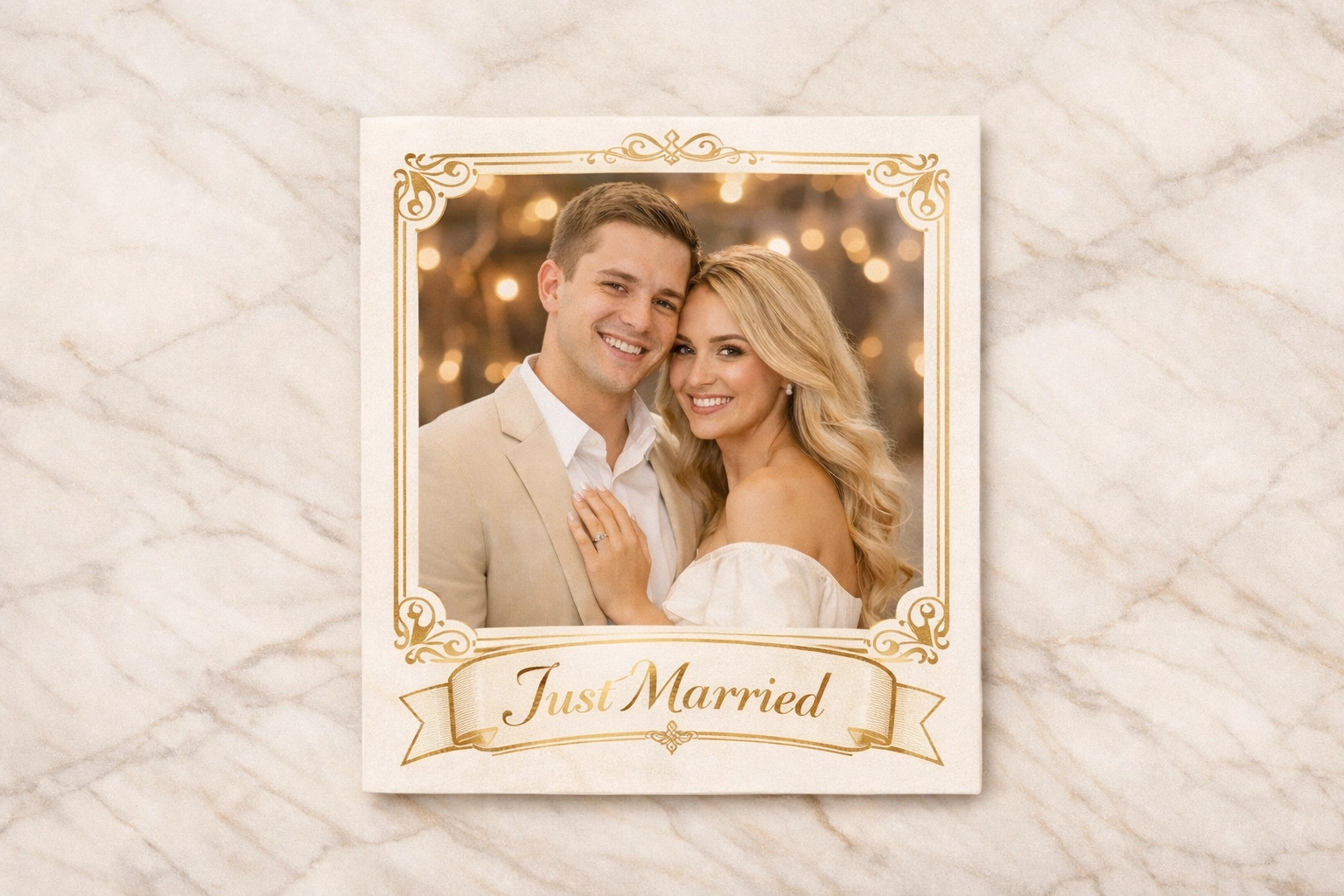
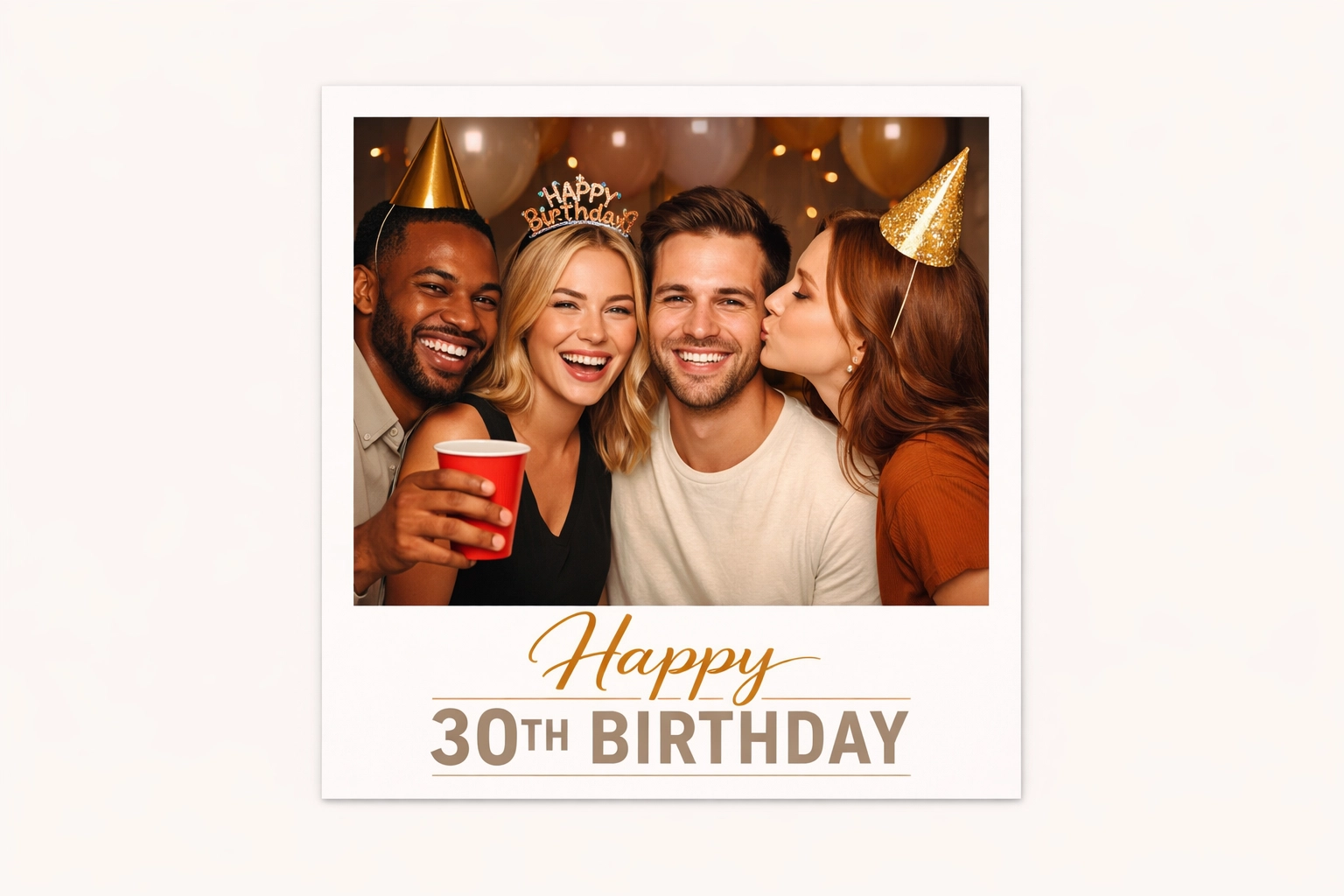
Private events. Weddings, birthday parties, bar and bat mitzvahs, anniversaries, corporate holiday parties. The host is the client, the ask is their monogram or event logo on a clean 4×6 or square frame, and the budget doesn’t support (or need) layered design work. Simple Mode is almost always the right call here.
Standard aspect ratios with a single overlay. If the output is a classic 4×6 print with a border, a 1×1 square for Instagram sharing, or a 9×16 vertical for Stories, and the client supplied a finished frame PNG in that ratio — you have nothing to build. Upload, select aspect ratio, select output type (photo, GIF, boomerang, video, AI image, or AI video), and you’re done.
Events with tight setup windows. If you’re doing multiple activations back-to-back or building out a last-minute booking, every minute of setup you can shave matters. Even for operators who prefer the Template Editor for creative control, Simple Mode is the right choice when speed genuinely beats polish.
Pre-built AI prompts with no custom branding. Running an AI photo booth experience with one of Pictor’s ready-to-go prompt packs and no client-specific overlay requirement? Simple Mode handles it cleanly. Pick your aspect ratios, pick your prompt, save, done.
The common thread: the creative decisions have already been made before you open Pictor. Your job is configuration, not composition.
When the Template Editor earns its setup time
The Template Editor takes longer to learn and longer to build in. It earns that extra time the moment a brief includes anything that can’t be solved with a single flat overlay — which, for operators working in branded and corporate activations, is most of the time. Don’t think about this as additional time, think of it as time reallocation. You’ll spend less or no time in Photoshop or Canva, because now those customizations can be done in Pictor.
Multi-capture photo strip templates. A classic 2×6 strip with three photos stacked vertically, a 4×6 with a 2×2 grid, a 4-panel comic layout — any time you have more than one capture on the same output, you’re placing image slots manually in the Template Editor. Simple Mode can’t do this because it’s built around a single overlay on a single capture.
Background removal and subject compositing. Want the guest’s body on a custom branded backdrop, a movie poster background, or a themed scene? That’s a background-removal layer sitting above a custom background layer in the Template Editor. Multi-layer work, by definition.
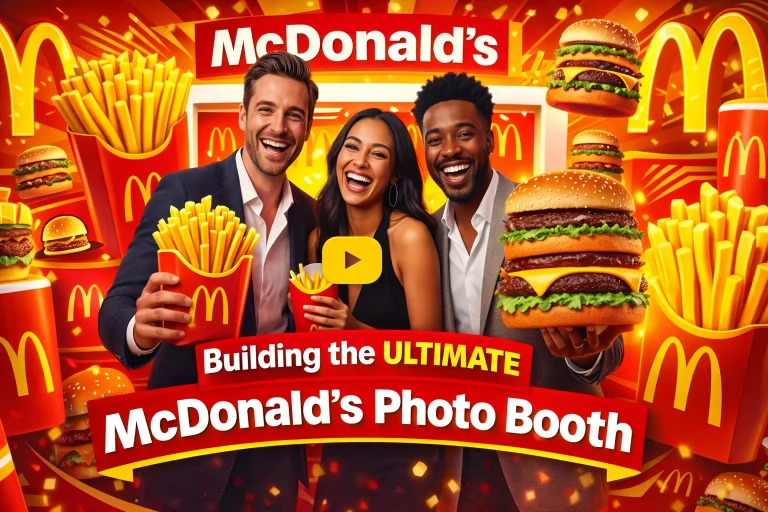
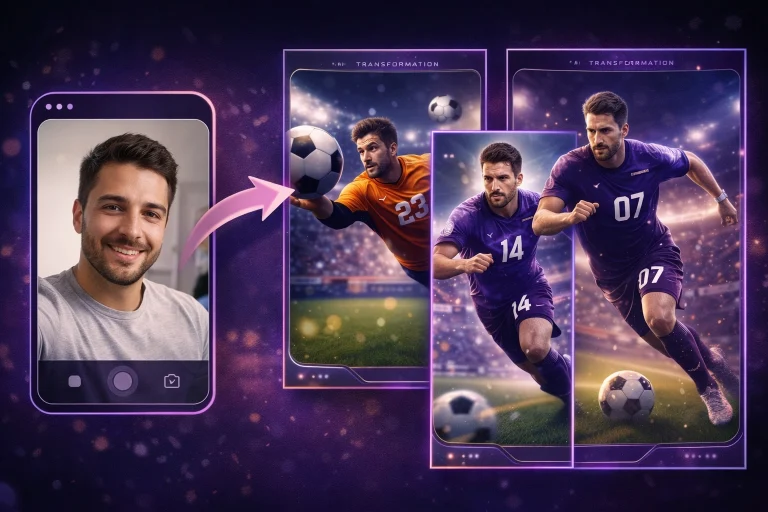
Dynamic text and tokens. If you ran a branded McDonald’s activation where each guest’s photo got an “Employee of the Month [name]” badge pulled from their survey answer, that’s a text layer with a token, and tokens only exist in the Template Editor. Same for any overlay that needs the guest’s name, jersey number, company, or any other data captured during the flow.
Postage-stamp layouts. When you want the original capture and the AI-generated version on the same output — say, the AI photo fills the frame and the original lives as a small thumbnail in the corner — that’s two image layers plus positioning math. Template Editor territory.
Effects on text and graphics. Drop shadows (a classic trick: duplicate the text layer, change the color to black, offset a few pixels), layered logos, multi-stroke borders, transparency blends, rotation, free-form positioning. All Template Editor.
Custom AI prompts per template. In Simple Mode, your AI prompt applies to the whole experience. In the Template Editor, you can attach a specific prompt to a specific template — which means one event can offer guests multiple AI variants (for example, a “superhero” template and a “movie poster” template running side by side), each with its own prompt and own overlay design. This is how you turn a single booth into a multi-experience activation.
Multiple output templates in one event. If you want guests to pick between several final output styles at capture time, you need to define each of those templates separately in the Template Editor. Simple Mode produces one output configuration per event.
The common thread here: the creative work is happening inside Pictor, not outside of it. You’re composing, not just configuring.

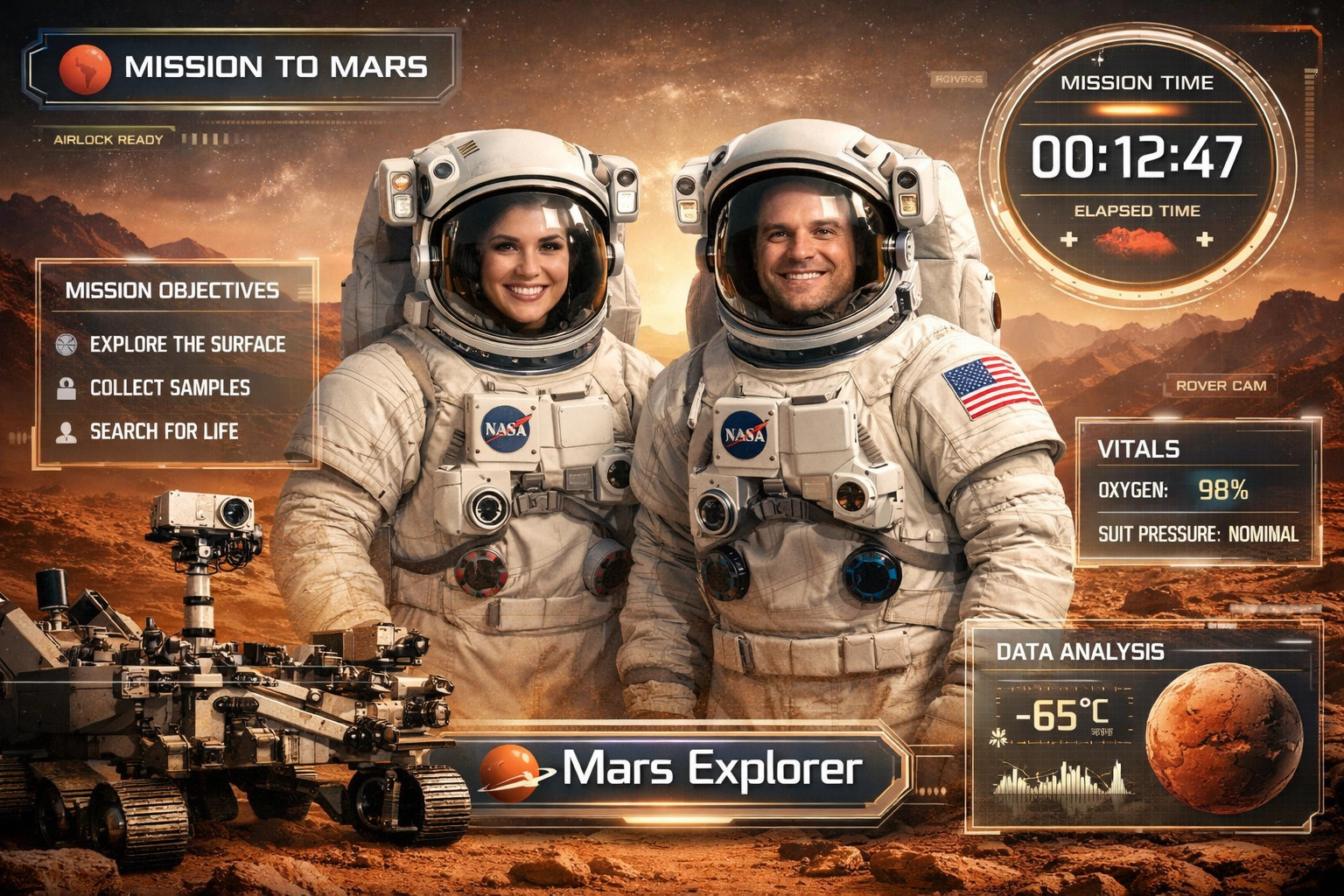
Or you can go in a completely different creative direction and still stay inside the same mode. Picture a Space Explorer activation for a science museum or a tech brand launch: guests get background-removed out of their street clothes, dropped into realistic space suits on a Mars landscape, and finished with floating mission-UI graphics, a live mission clock token, and a Mars Rover foreground layer in one landscape output. That’s AI styling, background removal, compositing, dynamic data, and per-template prompts all working together — the exact combination Simple Mode can’t touch, and the exact reason the Template Editor exists in the first place.
The power-user paradox: even founders use both
Here’s the part that tends to surprise people.
Our founder, Nicholas uses the Template Editor for about 99.9% of the builds he works on for his OutSnapped clients. He built it. He knows every positioning trick, every math-based alignment, every layer-stacking pattern. And yet — yesterday he built out a client event in Simple Mode, because it saved him five minutes he didn’t have to spare.
That’s the answer to the question “once I learn the Template Editor, will I still use Simple Mode?” The honest answer is: yes, some of the time, forever. Not because you’re dropping down to an easier version of the tool, but because some jobs genuinely don’t need composition work — and on those jobs, the operator who spent 45 minutes in the Template Editor and the operator who spent 5 minutes in Simple Mode ship the same final output. The only difference is the 40 minutes.
Event type matters more than operator skill level. Weddings, holiday parties, and private events tend to gravitate toward Simple Mode because the creative brief is usually “here’s our logo, put it on everything.” Brand activations and experiential marketing events tend to gravitate toward the Template Editor because the brief usually includes layered graphics, dynamic content, multi-template experiences, or compositing that can’t be pre-designed in Canva. Neither mode is a progression — they’re a mirror of the calendar in front of you.
The best Pictor operators we work with build in both modes depending on the job. They don’t “graduate” out of Simple Mode any more than a carpenter graduates out of using a hammer because they learned how to use a router.
How to actually switch between them
Quick operational reference (the full support article has every detail if you need it):
Where it lives: Event → Workflow → Choose Experience stage. That’s the single place where the mode decision is made and saved for each event.
Switching mid-setup: You can flip between Simple Mode and the Template Editor at any time. Just know that the interface changes on switch, and your unsaved configuration from the previous mode doesn’t carry over. Always save after switching before you walk away from the event.
Pre-registration: Whichever mode you save is the mode pre-registration will use. Nothing extra to configure — the guest journey is defined by the Choose Experience stage for every touchpoint, including anything pre-captured before the guest reaches the booth.
One mode per event: Pictor doesn’t run Simple Mode and the Template Editor in parallel on the same event. The configuration you save at the Choose Experience stage is what runs at the booth. If you need both — say, a main event using the Template Editor and a separate overflow booth using Simple Mode — set them up as two events.
Watch it in action
If you prefer video, Nicholas walks through both modes side by side above. For even more tactical walkthroughs, head over to the full Pictor video library or join the next Show & Tell to watch a live build.
Frequently Asked Questions
Can I use both Simple Mode and Template Editor in the same event?
No, you can’t use both Simple Mode and Template Editor in the same event — only one mode can be active per event. Whatever you save at the Choose Experience stage is what runs when the event goes live. If you need both kinds of experiences on the same day, set them up as two separate events.
What happens if I switch modes partway through setup?
If you switch modes between Simple & Template editor partway through an event setup the interface updates to reflect the mode you switched to, but your previous configuration doesn’t carry over. You’ll need to reconfigure and save the new mode before it takes effect. As long as you save before you leave the page, the switch is clean. All previous changes in the alternative mode stay intact and you can switch back at any time.
Does the mode I choose affect pre-registration?
Yes — pre-registration automatically follows whichever mode is saved at the Choose Experience stage. There’s nothing extra to configure. If you’re running Simple Mode for the event, pre-registration uses Simple Mode behavior, and the same applies for the Template Editor.
Is Simple Mode missing features that Template Editor has?
Yes, intentionally. Simple Mode doesn’t include layered templates, background removal, dynamic text tokens, postage-stamp layouts, or per-template custom AI prompts. That’s the whole point — if your job needs those features, Simple Mode will steer you toward the Template Editor. If your job doesn’t need them, Simple Mode saves you the setup time of a tool you weren’t going to use anyway.
Will I outgrow Simple Mode?
Probably not. Even operators who live in the Template Editor most of the time reach for Simple Mode on the jobs that don’t need composition work. It’s not a progression — it’s a toolkit. Expect to use both, depending on the event in front of you.
I saved my configuration but nothing seems to have changed at the booth — what should I check?
Make sure you saved the configuration at the Choose Experience stage after making your selection. Unsaved changes are not applied at runtime. If you’re still seeing a mismatch, open the event flow, confirm the saved mode matches what you expect, and re-save to be sure.
Bottom line
The decision rule fits on an index card: one layer or many?
One flat overlay on one capture, creative work already done outside Pictor, standard aspect ratio, fast setup — reach for Simple Mode. Anything with multiple layers, multiple captures, dynamic data, compositing, effects, or per-template AI prompts — reach for the Template Editor.
Most Pictor operators will use both regularly. Founder Nicholas uses the Template Editor 99.9% of the time and still reaches for Simple Mode when the job calls for it. Event type pulls you toward one mode or the other — weddings and corporate holiday parties pull toward Simple Mode, experiential marketing and brand activations pull toward the Template Editor — but every operator’s calendar has a mix.
The best approach isn’t picking a favorite. It’s building the muscle memory to know which mode each job deserves.
👉 New to Pictor? Start a free trial at app.pictor.pro/register — both modes are available on every license, no upsells, no per-feature gating.
👉 Want to watch it built live? Join the next Pictor Show & Tell — free weekly live webinar where Nicholas demos real client builds and answers operator questions in real time.
👉 Want the operational reference? The Pictor support article on Simple Mode vs Template Editor has the full step-by-step for configuration, pre-registration, and mode switching.
Got a client job that has you bouncing between modes? Reply to this post or tag us — we’d love to feature real operator builds in an upcoming Show & Tell.