The Unfair Advantage: How to Use Reference Images and Surveys to Nail Every Brand Activation
Learn how Pictor's new reference image tools and survey-driven AI prompts give photo booth operators a real unfair advantage for winning high-ticket corporate contracts.

Eve Martin
Watch the full Pictor Show & Tell live webinar for step-by-step instructions, audience questions, and more.
In this week’s Pictor Show & Tell, Nicholas walked through a set of quietly huge updates to the custom prompt editor that give photo booth companies a real unfair advantage: branded reference images, prompt-level surveys that actually change the output, and optional gender questions that better reflect how guests identify.
If you care about booking more corporate gigs, charging more for AI experiences, and keeping brand managers happy, these are the features that get you there.
Why Reference Images Are Such a Big Deal for Brands
One of the biggest concerns corporate clients have about AI is brand control: “Will our logo, jersey, or product look like us?” You can’t afford to show up to a stadium activation or product launch with AI results that are “inspired by” the brand instead of matching it.
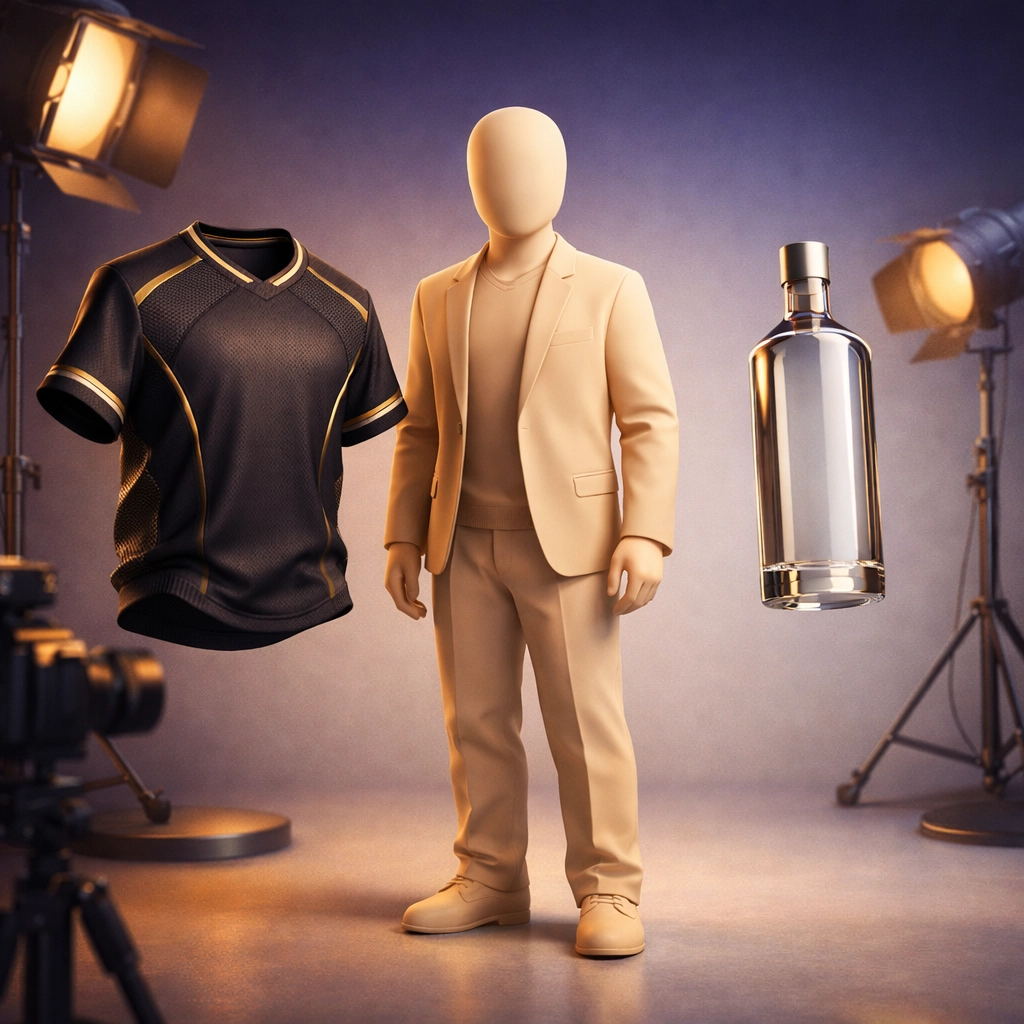
Pictor’s new reference image tools let you upload specific visuals—logos, jerseys, products, outfits, even an art style—and use them directly inside your prompts, so the AI has concrete visual guidance instead of guessing from a vague text description. This means you can promise clients much higher consistency for things like:
- Team uniforms (exact colors, striping, logos)
- Branded polos and jackets for corporate retreats
- Product packaging (bottles, cans, devices, sunglasses, etc.)
- A specific visual aesthetic or art direction
You’re not just prompting “a person holding a soda bottle” anymore—you’re telling the system “this exact Diet Coke bottle” or “wearing this exact branded polo.”
Step 1: Set Up Account-Level Reference Images
The first new capability Nicholas demoed was account-level reference images that you can reuse across all your custom prompts. This is ideal for anything that should stay consistent from event to event, like a main logo or a recurring sponsor product.
Here’s how to set it up:
- From your Pictor dashboard, go to Custom AI Prompts.
- Look for the new Reference images area at the top of the editor.
- Click Create reference (or similar button) to add a new visual.
- Give your reference a clear name, like “Yankees Home Jersey 2026,” “Acme Energy Drink Can,” or “Company Retreat Navy Polo.”
- (Optional) Add a short description to remind yourself what it is or how you plan to use it.
- Upload your file (ideally a clean, well-lit image; transparent backgrounds work especially well for products or logos).
- Save it.
Pictor will “tokenize” that reference so you can drop it into any custom prompt as a variable. Today, references are on a per-account basis—so one upload can power all of your prompts—and in a future update you’ll also be able to attach references at the individual-prompt level for even finer control.
Step 2: Build a Custom Prompt That Uses References
Once your references are in place, you can start building prompts that leverage them.
From the Custom AI Prompts screen:
- Click Create custom prompt (or edit an existing one).
- Choose a test image (e.g., a sample selfie of you or a standard test subject) so you can see what the prompt will actually do.
- Give the prompt a descriptive name, like “Person holding product on branded stage” or “VIP on stadium home plate.”
- In the prompt text, write your normal description—for example: “High-resolution editorial photo of this person standing on stage, holding…”
- When you reach the part where you want to specify the object, select your reference from the list (e.g., “Diet Coke bottle,” “Company Retreat Polo,” “Yankees Home Jersey”).
- Generate a test image, review the result, and iterate on the wording until you like the output (you can refine posture, camera angle, and other styling details).
In the webinar, Nicholas showed how easy it is to swap the “Oscar trophy” reference for a “Diet Coke bottle” reference—without changing the rest of the prompt. That single change turned the same experience from an awards show concept into a brandable product moment, which is exactly what you want for beverage launches, tech reveals, and retail activations.
Step 3: Add Surveys That Actually Change the AI Output
The second major feature Nicholas demonstrated was the ability to attach survey questions directly to a custom prompt, and then use those answers to change what the AI creates. This goes way beyond simple data collection: the survey response becomes part of the prompt.
Here’s how to wire that up:
- In your Custom AI Prompt, look for the Survey section tied to that prompt (not the event-wide survey).
- Add a new question—for example:
- “What’s your favorite art style?”
- “Which team are you here to support?”
- “Which product do you want to try on?”
- Choose the answer type: typically single selection works best for clean prompt logic.
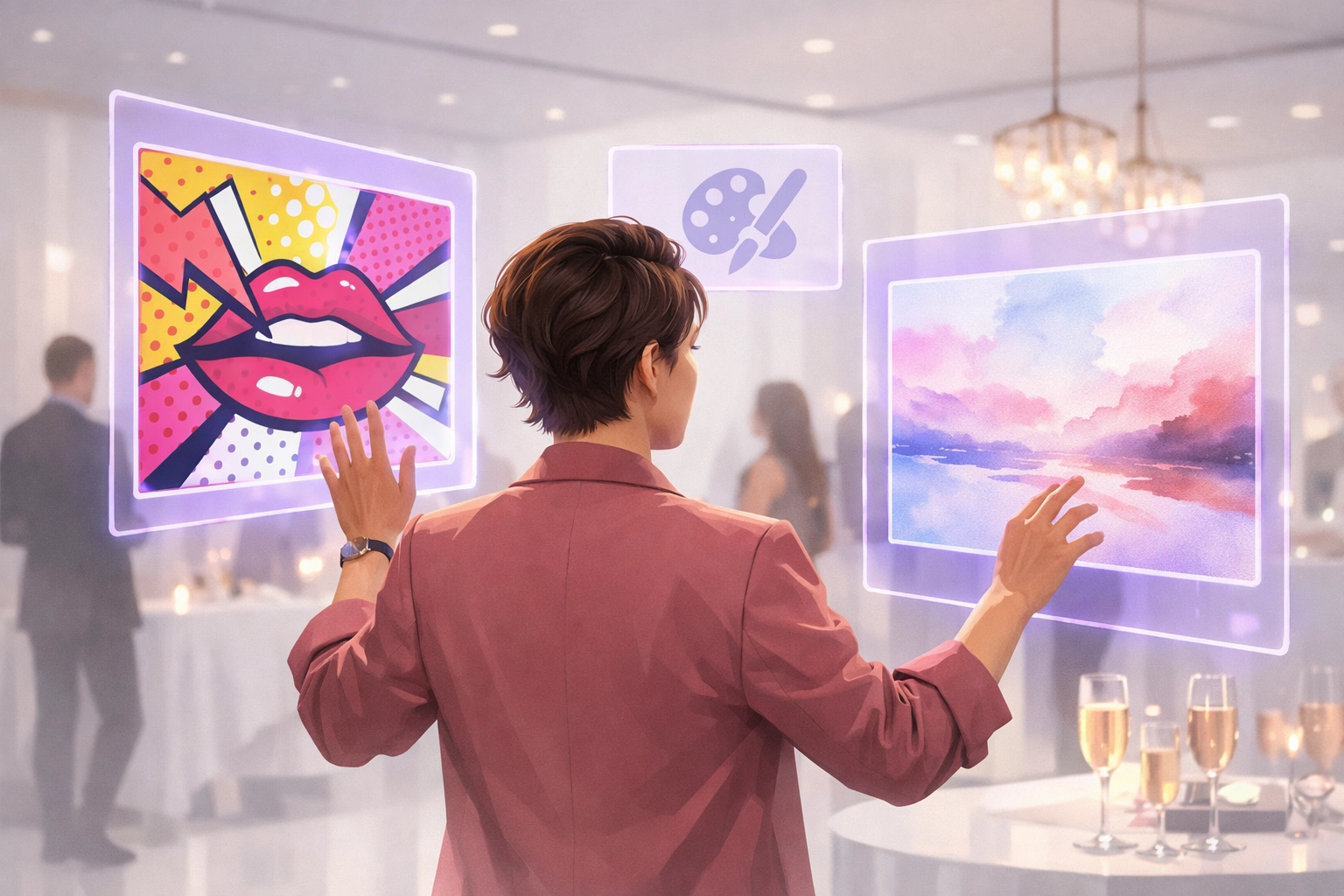
- Add the options your guests will see (e.g., “Impressionist,” “Pop Art,” “Children’s Crayon Drawing,” “Watercolor”).
- For each option, map it to a token value used in the underlying prompt. The guest might see “Impressionist” but you can pass “impressionist painting with broad brush strokes” into the prompt text.
- (Optional) Set a default token so that if someone skips the question, the prompt still has a sensible style to use.
In the example Nicholas built live, changing the survey answer changed the entire look of the output—from pop art to watercolor to children’s crayon style—without needing separate prompts for each look. That same pattern applies beautifully to jersey choices, product variants, and more.
Step 4: Make Gender Questions Optional (If You Want Them At All)
When Pictor first launched AI features, one of the most requested additions was a gender selection screen, so guests could choose male/female and get better-fitting styles before the models were as accurate as they are now. Over time, the most requested feature became the opposite: the ability to remove the gender question entirely.
In the last year of Pictor data, almost 13% of guests chose something other than “male” or “female” when presented with gender options, which is a larger share than many people expect.
Today you can configure your flows to:
- Skip gender questions entirely
- Include a gender question as part of your survey
- Offer more flexible answer choices if you prefer
From a how-to standpoint, you can treat gender exactly like any other survey question:
- In your prompt-level survey, create a question such as “How would you like to be styled?”
- Provide answers that map to styling tokens (e.g., “Suit,” “Gown,” “Androgynous look”) instead of—or in addition to—gendered labels.
- Decide whether that question is required or optional, based on your client’s preferences and the guest experience you want to create.
You get full control over whether you ask, how you ask, and what happens with the answers.
Step 5: Turn Prompts Into a Real Event Experience
Once your custom prompt and survey are set up, you connect everything to an actual event flow.
From the Pictor dashboard:
- Go to Events and create a new event, or open an existing one.
- Open the Flow or Template editor.
- Choose your experience layout (e.g., a 9:16 vertical layout for mobile or social).
- Add a Capture block and switch it to AI Image.
- In the AI settings for that capture, select your custom prompt from the Custom AI Prompts list.
- Decide how many outputs you want per session (one hero image, multiple images for a strip, or frames for an animated GIF).
- Save, then use Simulation mode to test the flow before you take it live.
Nicholas showed that you can also instantly turn on Virtual Booth from the output settings, giving guests a link or QR code they can use from their own devices, with the same branding and prompt logic as your physical booth. That makes it trivial to offer remote participation or extend an in-person activation online.
Recipe 1: Opening Day at Yankee Stadium (Sports Jersey Experience)
Use case: A team or sponsor wants guests to be “on the field” in official-looking gear.
High-level idea: Guests take a selfie and Pictor turns them into a player standing at home plate in the exact home uniform, using reference images and survey-driven styling.
How to build it:
- Create references
- Upload a clean image of the home jersey as a reference (front view, logo visible).
- Optionally upload stadium background art (e.g., a home plate scene) as another reference.
- Create the custom prompt
- Test image: use a standard selfie.
- Prompt text: “High-resolution editorial photo of this person standing at home plate in [stadium reference], wearing the official [team jersey reference], full body, stadium lights in the background.”
- Insert your jersey and stadium references in the appropriate spots.
- Add a survey (optional)
- Question: “Which position are you?” or “Home or Away jersey?”
- Map each answer to a slight variation in the prompt (e.g., “wearing the away jersey,” “posing as a pitcher,” etc.).
- Wire it into an event
- Create an event called “Opening Day Fan Experience.”
- Use a 9:16 layout, add an AI capture, attach your baseball prompt.
- Test in simulation, then deploy in the stadium or fan zone.
This is the kind of activation that not only looks premium but is also easy to sell because every fan understands exactly what the output is supposed to be.
Recipe 2: Product Reveal With Virtual Try-On
Use case: A brand is launching a new product—like sunglasses, a drink, or a gadget—and wants guests to “try it on” or “hold it” in AI photos before it even exists at scale.
How to build it:
- Create product references
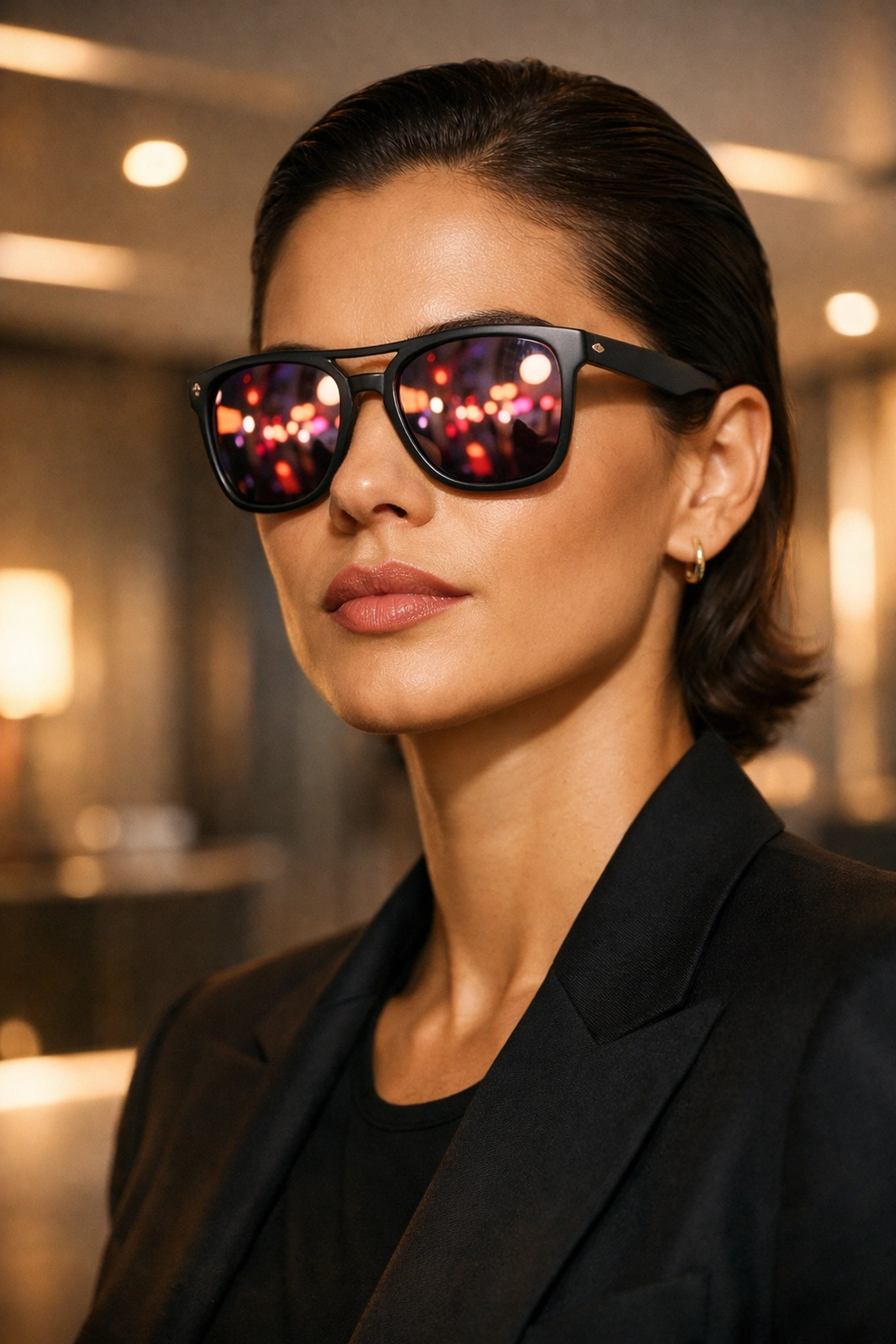
- Upload a clear product image: sunglasses, bottle, can, phone, etc.
- For wearables, use front-on product shots; for handheld products, angled shots that look natural in a hand work well.
- Create the custom prompt
- Test image: a selfie.
- Prompt text: “High-resolution editorial photo of this person in a clean studio setting, wearing [sunglasses reference] and holding [product reference] at chest height, softly lit, product clearly visible.”
- Add a survey to personalize
- Question: “Which product do you want to try?”
- Options: “Classic sunglasses,” “Bold sunglasses,” “Limited-edition color,” etc.
- Map each option to a specific reference or style token so the AI chooses the right look.
- Connect to a Virtual Booth
- In event Output Settings, toggle on Virtual Booth.
- Apply the same branding (logo and background) that you used in the physical booth.
- Share the link or QR code so remote guests can experience the same try-on effect from home.
This recipe is perfect for product marketers because you’re giving them content that looks campaign-ready, generated live, before full physical inventory exists.
Recipe 3: Corporate Retreat – Matching Branded Polos
Use case: A company wants everyone at their sales kickoff or retreat to appear in branded polos or jackets, even if they didn’t all get dressed exactly the same.
How to build it:
- Create clothing references
- Upload a clean image of the branded polo or jacket (ideally on a mannequin or worn by a model, front-on).
- Name it clearly, like “Acme Navy Polo 2026.”
- Create the custom prompt
- Test image: choose a selfie with neutral clothing.
- Prompt text: “High-resolution group or individual photo of this person at a corporate retreat, wearing the official [company polo reference], smiling, with a softly blurred conference background.”
- Optional: survey for team or department
- Question: “Which team are you on?”
- Options: “Sales,” “Marketing,” “Product,” etc.
- Use the team name in the prompt (e.g., “with subtle [Team Name] lanyard” or “standing in front of the [Team Name] signage”) to give each team a slightly different visual identity.
- Deploy at the event
- Attach this prompt to a dedicated “Team Portrait” experience flow.
- Use simulation to ensure the clothing edits look natural.
- Offer both physical and virtual booth options so remote attendees are included.
This gives HR and leadership teams a cohesive, on-brand visual record of the kickoff without needing wardrobe-police energy on site.
Give Your Business the Unfair Advantage
All of the features Nicholas demonstrated in this week’s Pictor Show & Tell—the account-level reference images, prompt-level surveys that shape the AI output, and optional gender flows—are available in your Pictor account now.
When your competitors are still typing “person holding a branded drink” into a generic AI tool and hoping for the best, you’ll be the one showing brand managers a live experience where every jersey, bottle, and polo looks exactly the way it’s supposed to.
If you’re ready to see these builds live, ask questions, and steal prompt recipes you can deploy for your next event, join our next Show & Tell. We walk through real workflows, not just marketing screenshots.
The era of “mostly” is over. It’s time to give your business the unfair advantage it deserves.
Ready to build your first reference-powered prompt? Start your Pictor trial today and see why operators call us the most powerful photo booth software ever built.
Nicholas Rhodes
Founder of Pictor & OutSnapped
Nicholas is the founder of Pictor and OutSnapped—a premium photo experience agency producing AI activations, red-carpet productions, and branded content for global events. He hosts Pictor Show & Tell almost every Wednesday.
Nicholas has produced thousands of branded photo experiences for global clients through OutSnapped and builds the tools operators use daily at Pictor.