What Is an MCP? A Plain-English Guide for Photo Booth Businesses
MCP is the plug between AI assistants like ChatGPT and Claude and the apps you already use. What it is, how to connect it, and the prompts we use in our own photo booth company.

Nicholas Rhodes
Drafted with AI assistance; reviewed and approved by Nicholas Rhodes before publishing.
You keep hearing “MCP.” Pictor has one. Your AI assistant supports them. But what is an MCP, and why should a photo booth business care?
Here is the plain-English version, plus the exact prompts we use in our own photo booth company. Watch the video above, or read on.
What is an MCP?
MCP stands for Model Context Protocol. Forget the name. Think of it as a plug.
Remember when every phone and camera had its own charger? Then USB came along, and one plug fit everything. MCP is that one plug, between AI assistants and the apps you already use: your inbox, your calendar, your invoicing, your design tool and your photo booth software.
Without MCP, your AI assistant only knows what you paste into the chat. With MCP, it can look things up in your apps and use the actions those apps allow. Your AI stops guessing and starts looking.
What are the three pieces?
- Your AI assistant does the thinking. ChatGPT, Claude, Grok, Hermes or Meta’s Muse.
- MCP is the plug. It is the connection between the assistant and the app.
- Your app sets the rules. Your email, your calendar or your booth software decides what the AI is allowed to see and do.
What changes when your AI is connected?
Ask your AI, “Did the Garcias pay their deposit?”
Without MCP, it says something like: “I can’t see your accounts. Can you paste the invoice?”
With MCP connected to your invoicing app, it checks and tells you: yes, the deposit was paid Tuesday, and the balance is due the week before the wedding. (The Garcias are an example, and so are the numbers.)
That is the whole idea. Same question, but now the assistant has somewhere to look.
How do you connect an app with MCP?
It takes about two minutes per app, and there is no code. You need two things: an AI assistant that supports custom connectors, and the MCP address of the app you want to connect. The app gives you that address, usually on an integrations or developer page, or in a setup email.
Step 1: Find the app’s MCP address
It looks like a normal web link. Copy it. For Pictor, send a support request: we add the MCP server to your account and email your connection details.
Pictor’s connected AI apps are in open beta on every plan, including Basic. See what shipped with them in Pictor 2.0.1.
Step 2: Add it to your AI assistant
In Claude:
- Open Connectors. Depending on your version, it is under Settings or Customize.
- Choose Add custom connector.
- Give it a name, such as “Pictor”, and paste the MCP address.
- Click Add.
On Claude Team and Enterprise plans, an admin adds the connector for the whole workspace, and you then click Connect next to it.
In ChatGPT:
- Open Settings, then Apps & Connectors.
- Turn on Developer mode. It sits under the advanced settings, and OpenAI moves it from time to time.
- Choose Create, name the connector and paste the MCP address.
- Save it.
Custom connectors in ChatGPT need a paid plan, and on Business and Enterprise plans an admin may need to allow them first.
Step 3: Sign in and choose what the AI can do
Click Connect and sign in to the app in the window that opens. This is where you choose whether the AI can only view your data or can also make changes. Start with view only if you are unsure. You can change it later.
Step 4: Switch it on in a chat and test it
In a new chat, click the + button and turn the connector on. Then ask a question that only the app can answer. For Pictor, try “Which Pictor account am I connected as?” It should reply with your account and company name, and say whether it is allowed to make changes.
The first time your AI uses a new tool, it asks your permission. In Claude you can set each tool to always allow, ask each time or block.
Step 5: Repeat for each app
Each app gets its own connection. Connecting Pictor does not connect your inbox or your calendar. To stop the AI using an app, remove the connector in your assistant. In Pictor, you can also disconnect any time under Integrations, then Connected AI apps.
What can MCP do for a photo booth business?
Picture your week:
- Monday, your inbox: “Find inquiries I haven’t answered and draft replies with my packages.”
- Wednesday, your calendar: “What’s booked next weekend, and where do I need to be?”
- Thursday, the money: “Which events still owe a balance?”
- Friday, design: “Draft a welcome sign for the Smith wedding, in their colors.”
Each one works when that app is connected to your AI assistant through MCP.
How do we use it in our own photo booth company?
Pictor is built by a photo booth company, and these are the three places MCP saves our team the most time:
- After every client call, the meeting transcript turns into a to-do list and a follow-up email, minutes after we hang up.
- After every event, we review how it actually performed, then send the client their gallery link and an event recap.
- After the event, the gallery keeps working. The best shots become our social posts, scheduled automatically.
Where does Pictor fit?
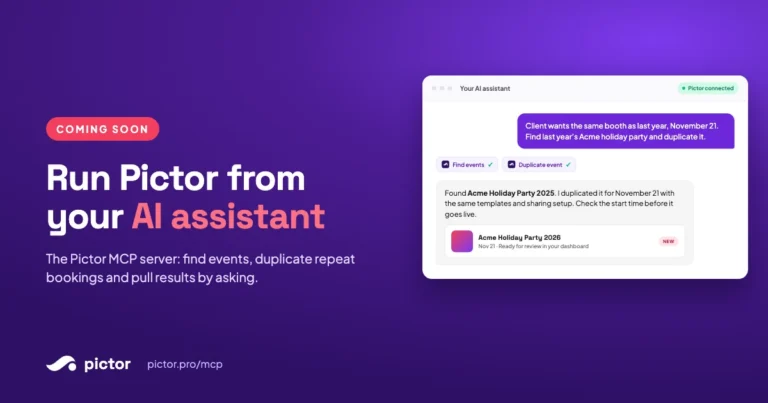
Pictor has its own MCP connection, so your events can be part of the conversation too. It works with ChatGPT, Claude, Grok, Hermes, Meta’s Muse and other AI assistants that support MCP servers.
It also chains with your other apps. Take Monday’s inquiry: “Set up an event for this inquiry from my wedding template.” Your AI reads the email, and Pictor builds the event from your template, ready for you to check.
With Pictor connected, you can ask your assistant to find previous events, duplicate an event for a new date, create events from templates and pull event stats. Pictor MCP is in open beta and included on every Pictor plan. For the full list of what version 1 can do, read our Pictor MCP announcement.
Which prompts should you try first?
Each prompt below says which app needs to be connected, what you should get back, and how to make it work harder. The names and numbers are examples. Copy the prompt, then swap in your own details.
1. “Did the Garcias pay their deposit?”
- Connect: your invoicing or payments app.
- You get: whether the deposit is paid, when, and what balance is still due.
- Make it better: “Did the Garcias pay their deposit? If not, draft a friendly reminder with the amount and due date.”
2. “Find inquiries I haven’t answered and draft replies with my packages.”
- Connect: your email. Paste your package list into the chat the first time, or keep it in a document the AI can read.
- You get: a list of open inquiries, each with a draft reply waiting in your drafts folder for you to check.
- Make it better: “Only inquiries from this week. Lead with our wedding package for weddings and our corporate package for company events. Keep each reply under 120 words.”
3. “What’s booked next weekend, and where do I need to be?”
- Connect: your calendar, or your booking software if it has an MCP connection.
- You get: each event with its day, start time and venue.
- Make it better: “What’s booked next weekend? List each event with the venue, start time and drive time from the one before.”
4. “Which events still owe a balance?”
- Connect: your invoicing or payments app.
- You get: each event with money still owed, the amount and the due date, plus the total.
- Make it better: “Sort them by due date and draft a friendly reminder for anything due in the next 14 days.”
5. “Draft a welcome sign for the Smith wedding, in their colors.”
- Connect: your design tool, such as Canva.
- You get: a few welcome sign drafts in your design folder, ready to tweak.
- Make it better: give it the couple’s names, the date and their colors, such as “sage and gold”, and ask for your booth’s sign size.
6. “Turn my call with the bride into a to-do list and a follow-up email.”
- Connect: your meeting notetaker, plus your email or task app.
- You get: the to-dos from the call and a follow-up email draft that confirms what you agreed.
- Make it better: “Flag anything that changes the quote, such as more guests, extra hours or a new backdrop.”
7. “How did Saturday’s event do? Draft the client recap with the gallery link.”
- Connect: your photo booth software (this is where Pictor comes in), plus your email.
- You get: the event’s results and a recap email draft with the gallery link, ready for you to review and send.
- Make it better: “Include the number of photos and shares, and end with a line asking for a review.”
8. “Pick the best five shots from Saturday and schedule them for this week.”
- Connect: your gallery and your social media scheduler.
- You get: five posts scheduled across the week.
- Make it better: “Mix photos and videos, post one a day at 11 AM, and tag the venue in each caption.”
9. “Set up an event for this inquiry from my wedding template.”
- Connect: Pictor and your email.
- You get: a new Pictor event built from your template, with the date and client details from the email, ready for you to check.
- Make it better: paste the inquiry or name the email, and say which template to use. If more than one event could match, the AI should ask you which one, not guess.
What are the honest limits?
- Each app needs its own connection. Connecting Pictor does not connect your inbox.
- Your AI can only do what each app allows. The app sets the rules, not the assistant.
- Read what your AI drafts before it goes out. Emails, recaps and posts are drafts until you send them.
It is not magic. But it takes a lot of the repeat work off your plate.
See it in action: we played our MCP explainer live on Show & Tell with the Illuminate co-founders, and four of the six operators who answered wanted to try it. For what Pictor MCP can do today and how to join the beta, see the Pictor MCP page.
Is this new for Pictor?
No. Pictor brought AI photos to the photo booth industry in 2023 and AI video in 2025. Nicholas Rhodes, Pictor’s founder, shared how we use MCP on stage at PBX in Amsterdam in September 2026. For the past few months, our team has tested MCP on our own live events before handing it to operators.
Get started: build and test Pictor free before your next event, and send a support request to switch on Pictor MCP.