Pictor 2.0.1: A Rebuilt DSLR Screen, Transparent PNG Export and Remote Booth Control
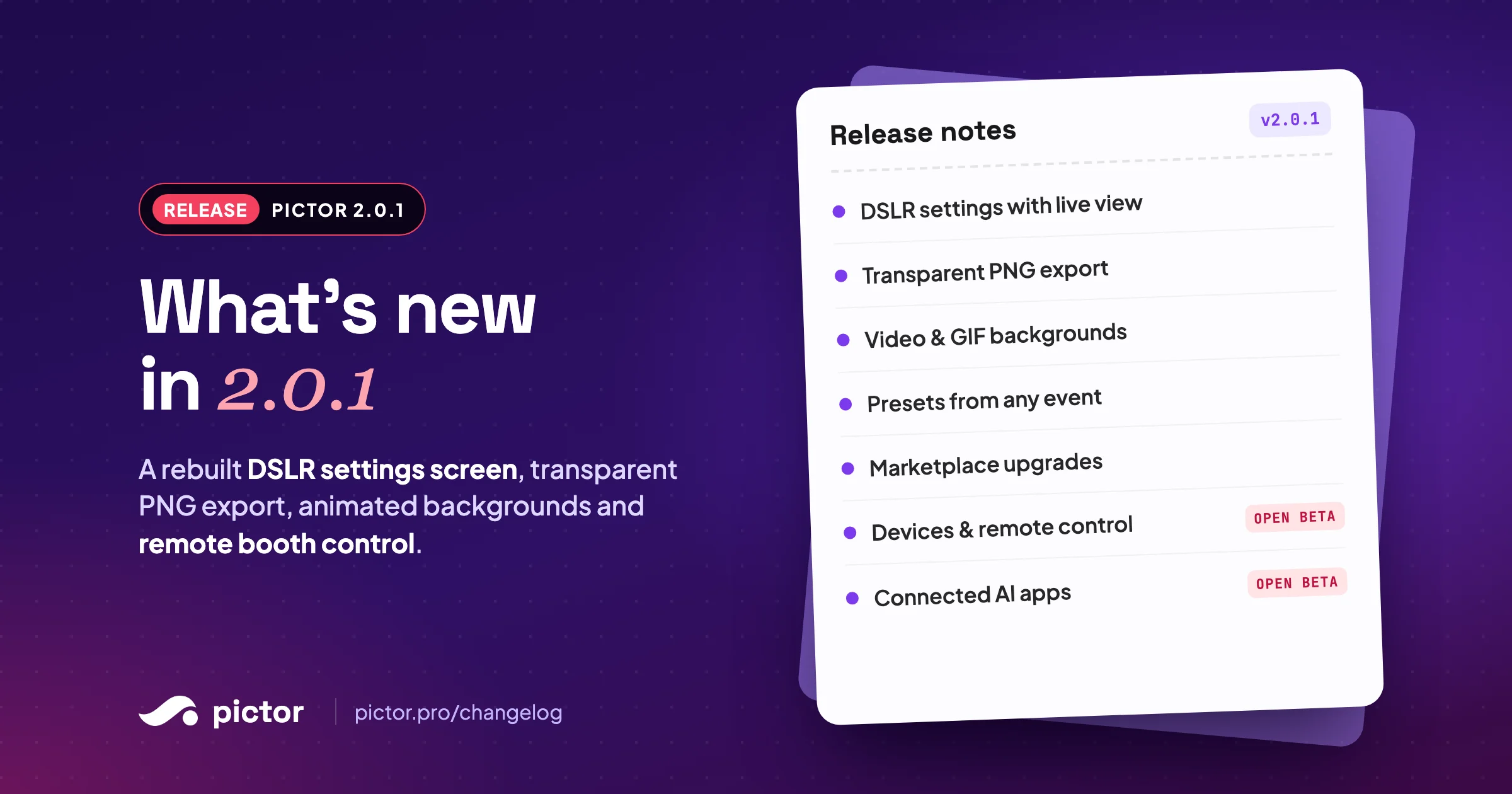
DSLR live view that matches the shot, transparent PNG exports, reusable event presets and remote booth control: Pictor 2.0.1 goes after the pain points photo booth companies told us about.

Nicholas Rhodes
Drafted with AI assistance; reviewed and approved by Nicholas Rhodes before publishing.
What is new in Pictor 2.0.1?
You told us what still slows you down at events: DSLR setup that fights you, white boxes around your exports, rebuilding the same event every weekend, and walking across a venue to fix a booth. Pictor 2.0.1 goes after each of those. It is the first feature release on top of the v2 rebuild, and nearly everything in it started as a request from a photo booth company.
It is live on iOS and the web from November 17, 2026, with Android following once store review clears. Remote device control and connected AI apps ship alongside it in open beta, on every plan, by request.
Already on Pictor? Update the app on iOS, or sign in on the web. New to Pictor? Start a free trial, no credit card needed, or see what each plan includes.
Pictor 2.0.1 at a glance
| Your pain point | What 2.0.1 does about it |
|---|---|
| Live view doesn’t match the photo | One set of DSLR settings by default, with live view beside them |
| White background around exported templates | Transparent PNG export for static templates |
| Start screen nobody notices | Video and GIF backgrounds, set per device size |
| Rebuilding the same event every weekend | Turn any event into a reusable preset |
| Walking the venue to fix a booth | Devices page with screen mirror and remote control (open beta) |
| Switching apps to check on events | Ask Claude or ChatGPT about your events (open beta) |
Released November 17, 2026 on iOS and Web. Android follows after store review.
Does your DSLR live view never quite match the photo?
You set exposure, take a test shot, and it looks nothing like the screen. Then you are flipping between menus on a tablet layout that wasn’t built for it, while guests wait.
In 2.0.1 your camera runs and shoots with one set of settings by default, so what you see in live view is what you get. If you like separate live view and shot settings, they are still under Advanced.
DSLR settings now has its own screen, with live view docked right next to the controls, and proper tablet layouts in landscape and portrait. Open it from the Devices list before the event. Need to fix something mid-event? The same settings open as a full sheet, so you never leave the event.
It also fixes the small things that cost you shots:
- Wi-Fi cameras are supported, so you can lose the cable.
- Canon tap to focus lands where you tap.
- Back-to-back captures are steadier, so your queue keeps moving.
- Not in manual mode? The app tells you and can switch the camera to M for you.
Check which cameras and plans are covered on the camera and hardware compatibility page.
Still cutting the background out of your exports?
If you hand outputs to a designer, drop them onto signage or layer them into a client’s graphics, a solid background is extra work every time.
Turn on transparent export in your template’s Layout tab, and static templates export as a PNG with a transparent background. It works per template, for static exports. Video and GIF exports are unchanged.
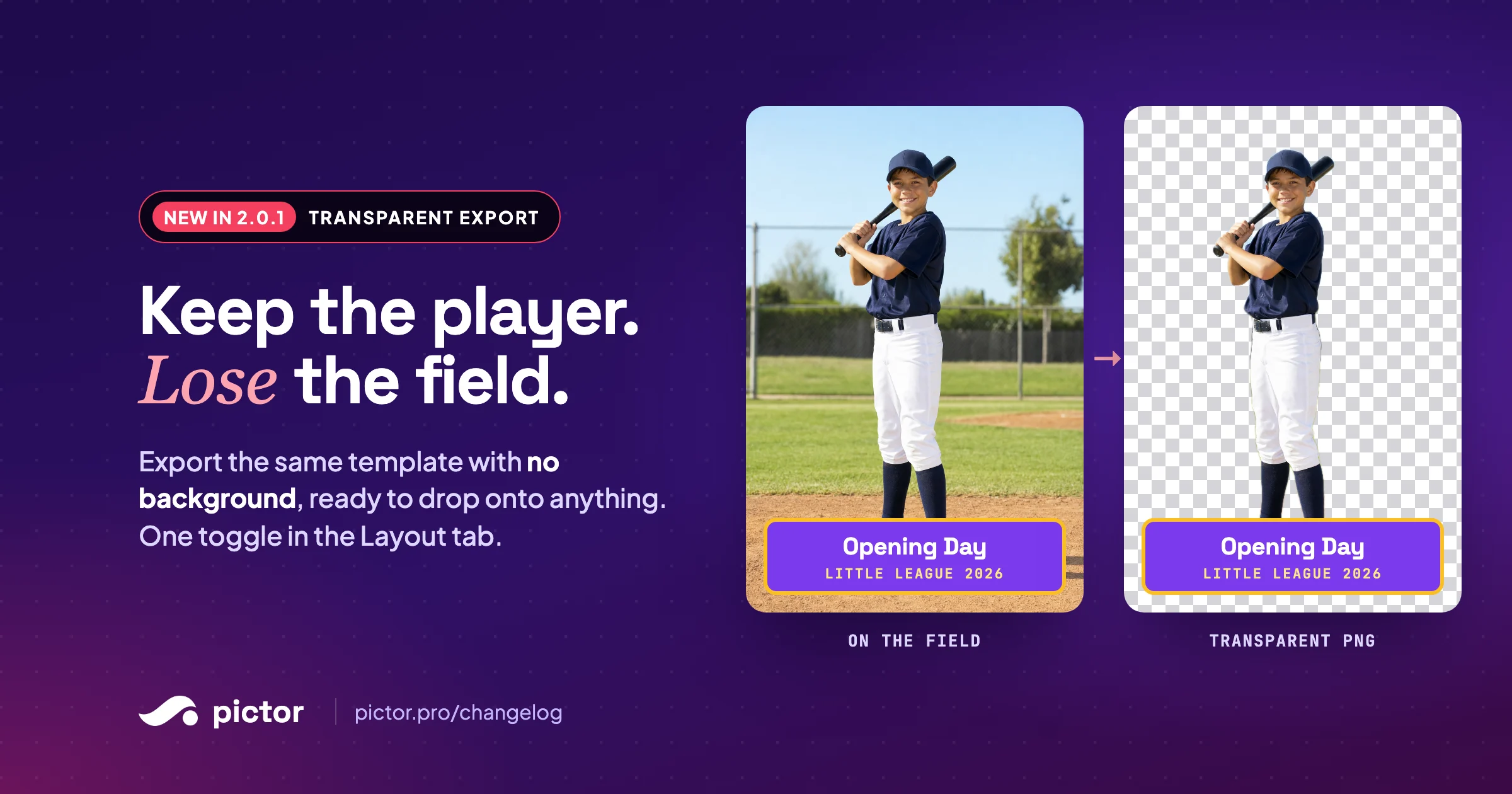
Pair it with background removal on Pro and Premium, and you get just the guest and your graphics: a little league player ready for a team banner, or a guest ready for a sponsor wall. It is the missing step in builds like baseball trading cards. Not sure where to set it? The Simple Mode vs Template Editor guide walks through both editors.
Is your start screen getting ignored?
A static start screen is easy to walk past, and one background rarely looks right on a phone, an iPad and a big screen at the same time.
Your stage backgrounds can now be a video or a GIF. You can set different media for phones, tablets and desktops, so every screen looks like it was made for it. That matters most where the booth has to pull people in on its own, like brand activations and pop-ups and corporate events.
Rebuilding the same event every weekend?
If you run weddings or brand activations most weekends, you are probably rebuilding the same setup again and again.
Now you can save any event as a preset and start the next one from it. You can duplicate presets to make variations, and manage them in bulk: delete several at once, or show and hide them in your Lookbook.
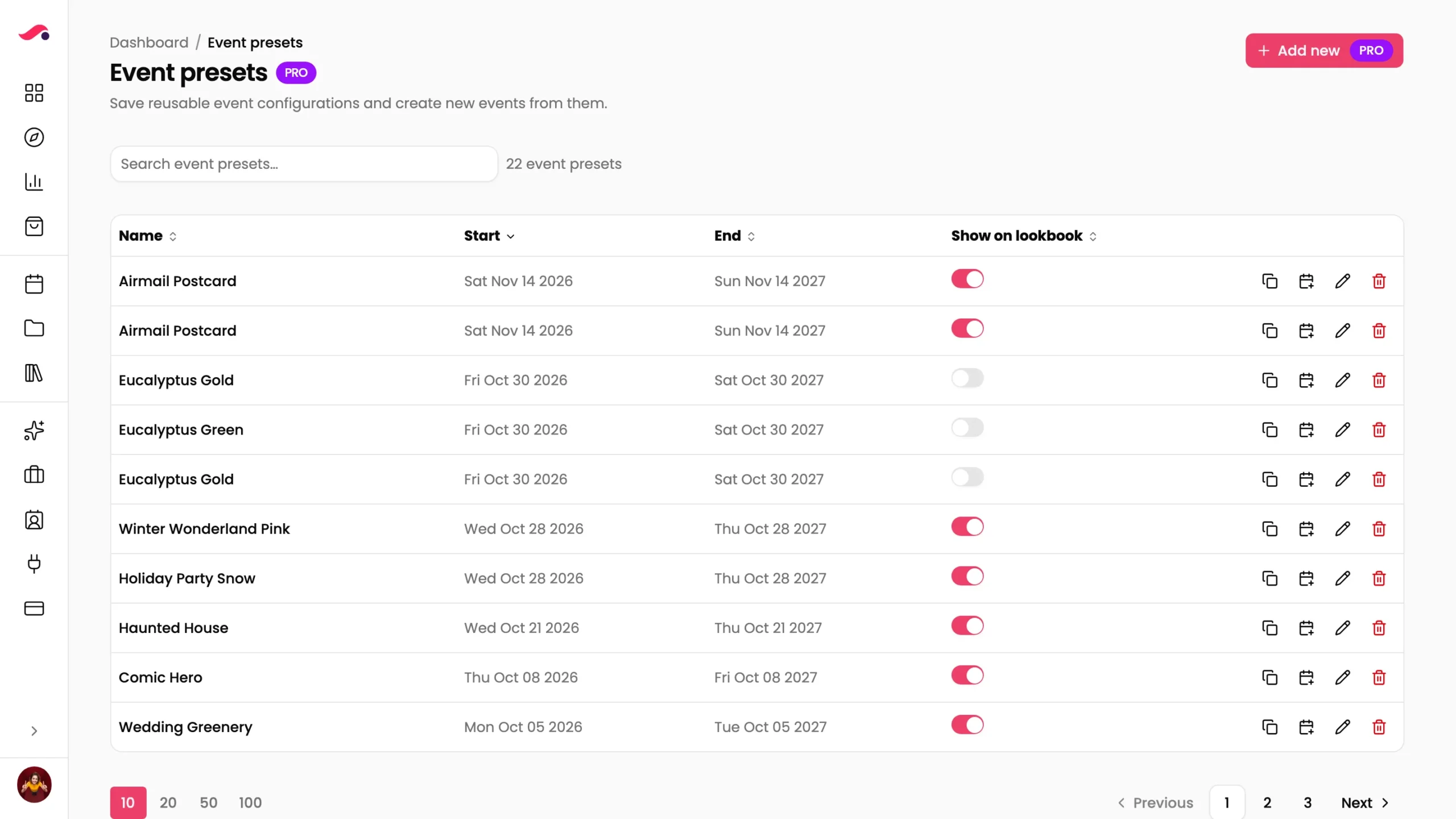
A good preset is your photo booth package in software form. Build your best wedding setup once, then start every wedding from it. Your Lookbook toggles control which presets clients see. Using BoothBook? See how clients pick a theme in their client portal.
Walking the venue to check on every booth?
When you run more than one booth, you are the one crossing the venue to check battery, restart an event, or find out why an attendant is stuck. And the phone call always starts with “what do you see on the screen?”
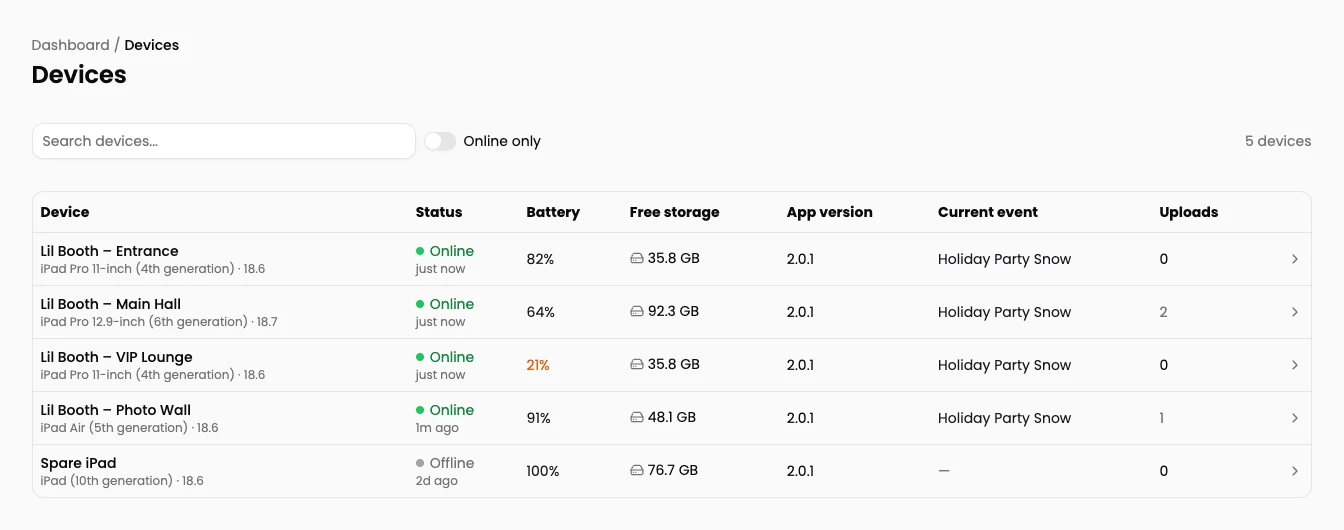
The Devices page shows every booth signed in to the Pictor app, with online or offline status, battery, free storage and app version. From the web, you can launch an event, exit the running event, force a sync, clear the cache, take a screenshot, and rename or remove a device.
When an attendant is stuck, open the device’s screen and fix it yourself. You can watch it live and control it: click to tap, swipe, scroll and type into text fields.
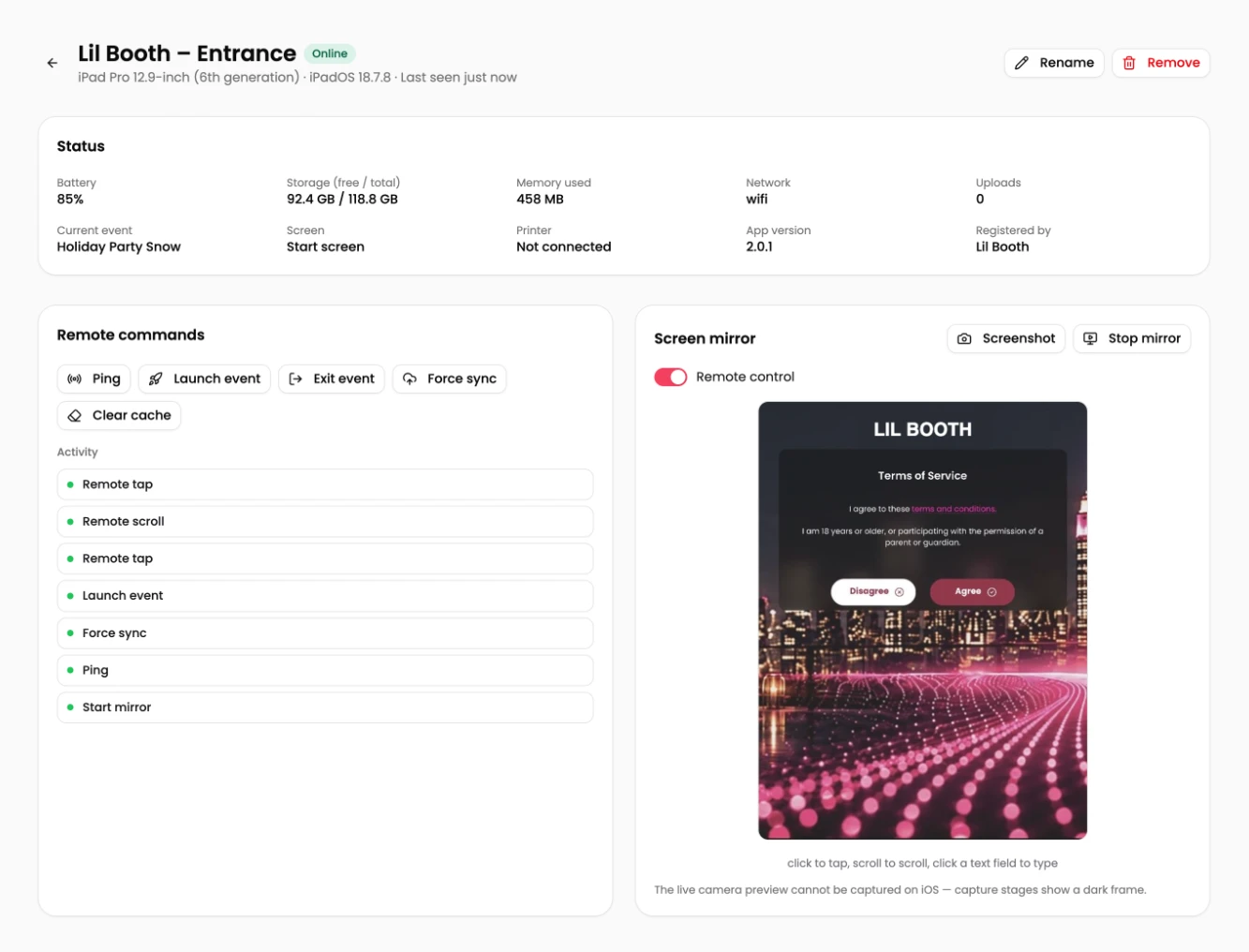
One limit: on iOS, the live camera preview can’t be captured, so capture stages show a dark frame in the mirror.
It doesn’t replace a person when something really breaks. 24/7 emergency phone support is still on every plan. But for the small stuff, you fix it from wherever you are. It is built for photo booth companies running several booths at once.
The Devices page is free on every plan while it is in open beta, by request. Open the support chat in the bottom-right corner of the Pictor web app and ask for access. After the beta, remote access becomes part of the Enterprise add-on.
Switching between apps just to check on your events?
If you already use ChatGPT or Claude to run the rest of your business, you shouldn’t need another tab to check how Saturday went.
Pictor’s MCP server connects Claude, ChatGPT or any other MCP client to your Pictor account. Sign in with Pictor, then ask in plain language. It can read your events, stats, galleries and AI outputs, your media library, templates, AI experiences, prompts and the marketplace. It can duplicate an event, create an event from a preset, and create or update AI prompts. Every change shows you a preview and waits for your confirmation.
You can see and disconnect your connected apps under Integrations. New to MCP? Start with what an MCP is and why it matters for a photo booth business, see how to run your booth business from your AI assistant, or go to pictor.pro/mcp.
Connected AI apps are in open beta on every plan, including Basic, by request. Ask through the support chat in the bottom-right corner of the Pictor web app.
What else changed?
The smaller fixes came from your feedback too:
- Marketplace for buyers: listings can sit in more than one category, you can filter by aspect ratio, and search matches seller names.
- Marketplace for sellers: descriptions are optional, up to four extra preview images, discounts with no end date, a confirmation on bulk price updates, and an unsaved-changes warning.
- Reviews: comments have a character limit, and your own comment shows in My Purchases.
- BoothBook: connect in one click.
- Permissions: new controls for who can view devices, connect to them remotely, and manage connected AI apps.
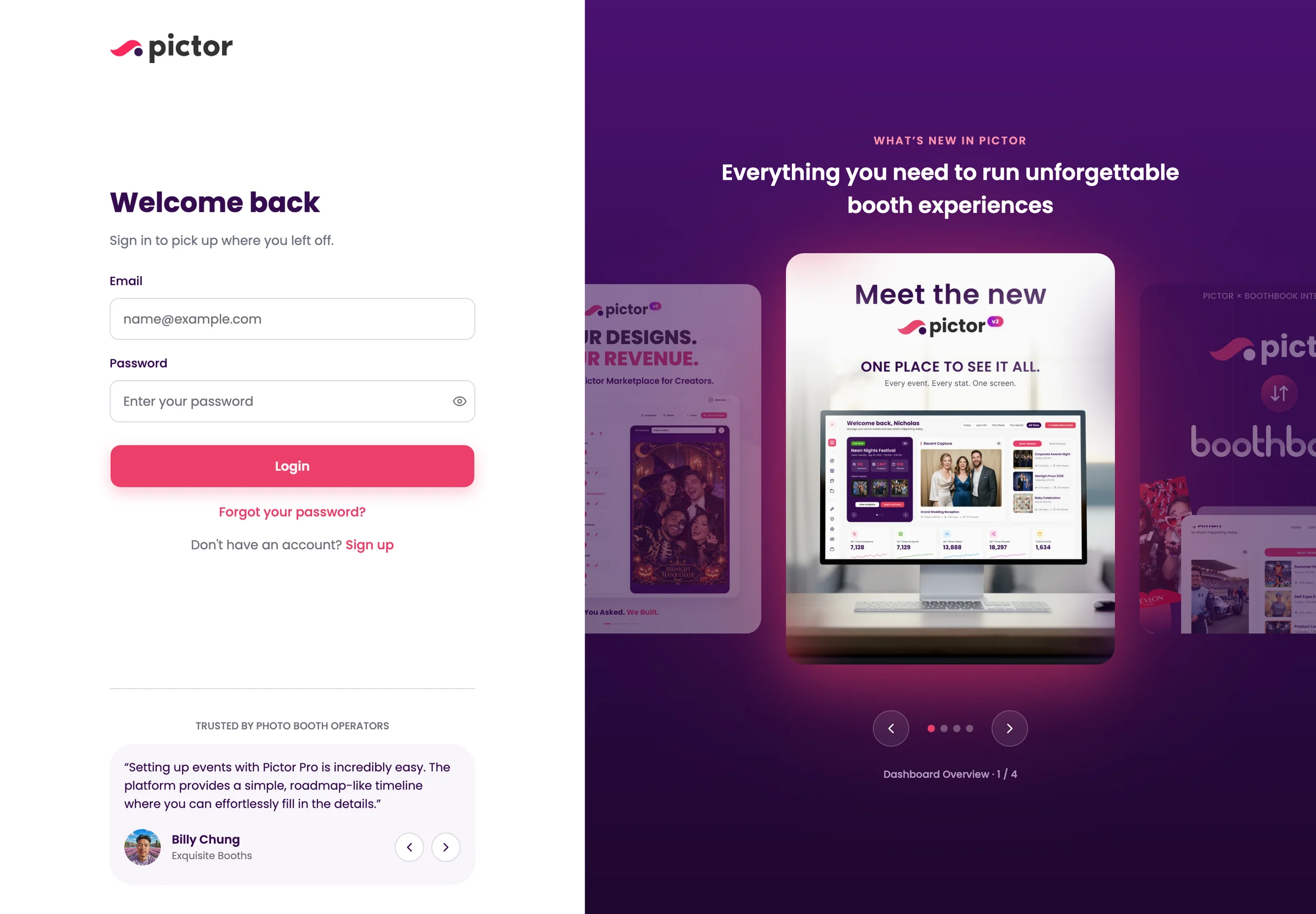
- Sign in and sign up: redesigned, including password reset.
- Tours: onboarding tours now show once per device.
The full list is on the Pictor changelog, and every connection Pictor supports is on the integrations page.
What should we fix next?
Pictor is built by a photo booth company, for photo booth companies. 2.0.1 exists because you told us what was slowing you down, and the next release will be built the same way. Tell us what is getting in your way through the support chat in the bottom-right corner of the Pictor web app, or say it live at the next Show & Tell.
Frequently asked questions
How do I update to Pictor 2.0.1?
On iOS, update the Pictor app from the App Store. On the web, sign in at app.pictor.pro and you are already on 2.0.1. Android 2.0.1 arrives through the Play Store once review clears.
Is Pictor 2.0.1 on Android?
Not yet. Android 2.0.1 is in store review. The current Android app, 2.0.0, keeps working as normal in the meantime. Pictor runs natively on Android as well as iPad; see why operators are choosing Android tablets.
Does 2.0.1 cost extra?
No. 2.0.1 is a free update for every Pictor plan. Features keep their usual plan levels, for example DSLR tethering on Pro and Premium. See the pricing page for what each plan includes.
How do I get remote devices or connected AI apps?
Both are in open beta on every plan. Open the support chat in the bottom-right corner of the Pictor web app and ask for access; it is switched on per account.
Will remote devices stay free?
Remote devices are free on every plan during the open beta. After the beta, remote access becomes part of the Enterprise add-on, alongside white-label apps and the lowest paywall fees. See the pricing page.
Who on my team can see and control my booths?
Only people you allow. 2.0.1 adds separate team permissions for viewing devices, connecting to them remotely and managing connected AI apps, so you decide who can see your booths and who can control them.
Can I see the camera feed when mirroring an iPad?
No. On iOS the live camera preview can’t be captured, so capture stages show a dark frame. Everything else on screen mirrors normally.
Does remote control replace emergency support?
No. Remote control lets you fix small problems yourself. Emergency phone support is still available 24/7 on every plan when something breaks during a live event.
Which cameras work with the new DSLR screen?
The DSLR screen works with the cameras Pictor already supports for tethering, and 2.0.1 adds Wi-Fi camera support. Check your model and plan on the camera and hardware compatibility page.
Why doesn’t my DSLR live view match the photo?
Usually because live view and capture use different settings. In 2.0.1, both use one set of settings by default. If you changed that under Advanced, switch it back so live view matches the shot.
Does transparent export work for GIFs and videos?
No. It applies to static templates, switched on per template in the Layout tab.
Will transparent export remove the background from guest photos?
No. Transparent export removes the template’s background. To cut the guest out of their surroundings, use background removal on Pro and Premium together with transparent export.
What file types can I use for stage backgrounds?
Images, videos and GIFs. You can set different media for phones, tablets and desktops on the same event.
Can I share or sell my event presets?
You can show presets to clients in your Lookbook. Presets, templates and prompts can also be bought and sold on the Pictor Marketplace.
Will a connected AI app change my events without asking?
No. Actions such as duplicating an event or updating a prompt show a preview and wait for your confirmation.
Does Pictor’s MCP server work with ChatGPT?
Yes. It works with Claude, ChatGPT and other MCP clients. The beginner’s guide to MCP shows how to connect each one.
I’m on other photo booth software. Can I try 2.0.1?
Yes. Start a free trial, no credit card needed. If you are moving from another platform, see how to switch without starting over.
Nicholas Rhodes
Founder of Pictor & OutSnapped
Nicholas is the founder of Pictor and OutSnapped—a premium photo experience agency producing AI activations, red-carpet productions, and branded content for global events. He hosts Pictor Show & Tell almost every Wednesday.
Nicholas has produced thousands of branded photo experiences for global clients through OutSnapped and builds the tools operators use daily at Pictor.