Run Your Photo Booth Business From Your AI Assistant With Pictor MCP
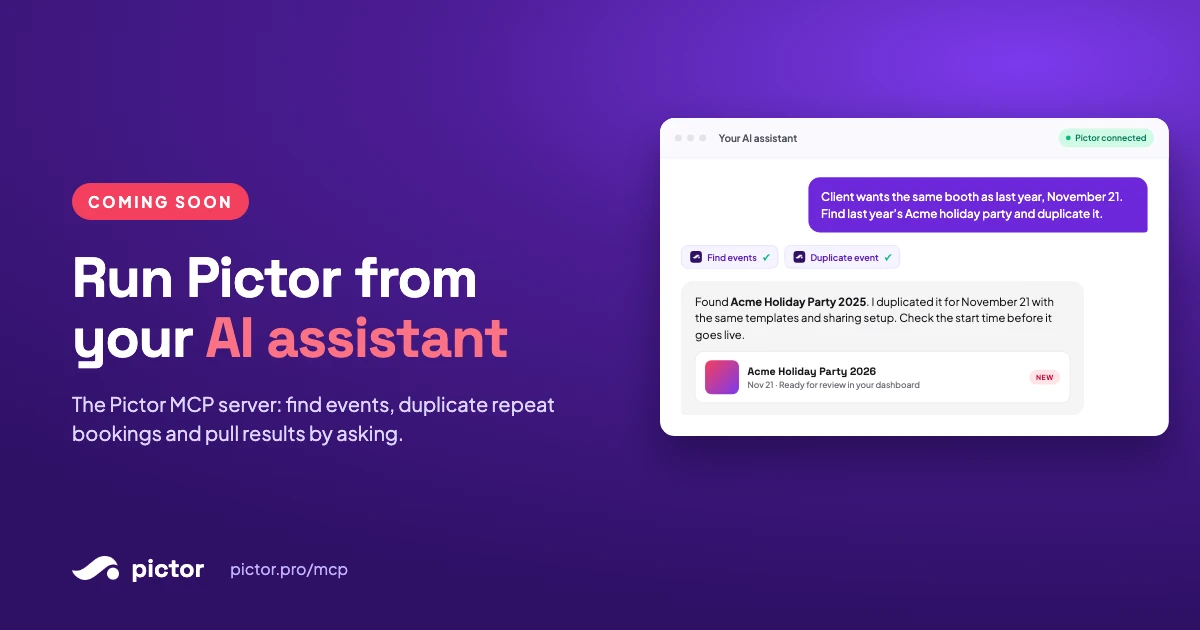
Pictor MCP connects your photo booth software to Claude and other AI assistants. Find events, duplicate repeat bookings and pull results by asking.

Nicholas Rhodes
Drafted with AI assistance; reviewed and approved by Nicholas Rhodes before publishing.
The 2-minute trailer: chat scenes dramatized, dashboard scenes are real Pictor footage.
Your client emails: “Same booth as last year, but at the new venue, on November 21.”
Simple request. Then the work starts. Find last year’s event. Check what was set up. Rebuild it, change the date, and hope nothing got missed between the old event and the new one.
Now picture typing one line into the AI assistant you already use:
“Find last year’s event for this client and duplicate it for November 21.”
That is what the Pictor MCP server does. It connects your Pictor account to an AI assistant like Claude, so you can find events, reuse setups that worked and pull event results by asking in plain English. It is in open beta now: send a support request and we switch it on for your account. Here is what it is, what version 1 can do, and where we are taking it.
Connected AI apps, including the MCP server, are in open beta on every plan as part of Pictor 2.0.1. Ask through the support chat in the bottom-right corner of the Pictor web app.
What is the Pictor MCP server?
The Pictor MCP server is a secure connection between your Pictor account and an AI assistant such as Claude. Once it is connected, you can ask the assistant to find events, duplicate a past event for a new date, create an event from a template, pull gallery items and event stats, or search your media library. Pictor’s MCP server is open to every plan, including Basic. Version 1 has 17 tools, and nothing gets deleted unless you allow it.
Is it tested on real events?
Yes, ours. Pictor is built by a photo booth company, and we did not want to hand operators something we had not trusted with our own clients.
Every Pictor feature has to do one of two things: create an incredible experience for your guests, or make running your booth business easier and more profitable.
We have been building the MCP server for a few months, and we run every feature on our own events before it ships. For the past 60 days, our team has used the MCP server to build all of our live events. During the beta we also built a complete event from a single conversation: 60 template variations, custom fonts and global text, ready to run in the dashboard.
That is why version 1 looks the way it does. It covers the jobs we kept doing by hand, and it leaves out anything we did not trust an assistant to do unsupervised.
What does MCP mean, in plain English?
MCP stands for Model Context Protocol. It is an open standard that gives AI assistants a common way to plug into software.
Without it, an assistant only knows what you paste into the chat. You copy details out of your dashboard, paste them in, get an answer, and carry the answer back. With an MCP connection, the assistant can look up real information in the app and use the specific actions the app allows.
Three parts, three jobs:
- The assistant understands your request.
- MCP is the connection.
- Pictor decides which tools exist and what your account is allowed to do.
The “server” part only means the software that offers those tools to your assistant. There is nothing to install in your office and no IT department required.
What problems does it solve for photo booth operators?
The guest sees two hours of fun. You see the hours around them. These are the jobs that eat a booth owner’s week, and the ones the MCP server is built for:
- “Same as last year.” Repeat clients are the best bookings you get, and rebuilding their event from memory is the worst part of them.
- “What’s on this weekend?” Friday night spent clicking through every event to check dates and features before you load the van.
- “Where’s the client’s logo?” Hunting through email threads and folders for the file you already uploaded once.
- “How did it go?” Building the client recap by hand from stats you have to go and find.
- “Which AI styles can I sell?” Remembering which AI experiences your plan includes while a client is on the phone.
None of these need more features. They need fewer clicks between the question and the answer.
What can Pictor MCP do in version 1?
Version 1 ships with 17 tools. Fourteen only read information. Three create or update something. No deletes unless you allow it.
Version 1 at a glance
Five jobs, 17 tools, no deletes unless you allow it
- 1Find any eventSearch by event or client name, filter by date or status, or pull one event by ID or short event code. Read-only.
- 2Start from what already workedDuplicate an existing event, or create one from your own event templates or Pictor’s global ones. Creates.
- 3Pull results after the eventGallery photos and videos, AI images next to their originals, and stats: captures, sessions, shares by channel, sessions per device. Read-only.
- 4Find assets and experiencesSearch your media library and folders, list the AI experiences your company can use, and browse the marketplace. Read-only.
- 5Manage custom AI promptsCreate or update a company custom AI prompt from the conversation. Creates or updates.
Find the event you are looking for
“Show my upcoming events.” “Find the event for Acme.” “What features are turned on for this one?” You get the answer in the chat instead of hunting through the dashboard.
Start from something that already works
“Duplicate last week’s event for the next show.” “Create an event from my wedding preset for November 21.” Repeat bookings get a tested starting point. You still review the new event before guests ever see it.
Get photos, videos and event results
“How did Saturday’s gala do?” “Get me the AI outputs from the gala.” The assistant pulls gallery photos, GIFs and videos with links you can open or share (hidden and test shots are left out unless you ask), plus captured content, sessions, shares by channel and sessions per device, and AI images next to the original captures. That is the raw material for a client recap. The assistant can draft the recap. It cannot send it. You do that.
Find assets and explore experiences
“Find the logo in my media library.” “Which AI experiences are available to my company?” “Find portrait templates for corporate events, cheapest first.” Marketplace access is browse-only. Nothing gets bought.
Save the AI prompt you refined in chat
“Create a prompt that turns guests into 80s rock stars on a neon-lit stage.” The assistant writes the prompt for you, down to subject, location, style and lighting, and can add a video prompt with a quality setting. It saves it as a company custom AI prompt, so it is waiting in the Custom Prompt Editor when you build the event. It manages the prompt. It does not run AI generations; guests still do that at the booth. Before a prompt goes in front of guests, test it properly.
How does it handle messy client emails?
Clients do not send booking forms. They send things like:
“Same setup as last December, but it’s November 21 this year. Use the new company name, and check the start time with me before you finalize.”
That is unstructured information: useful details buried in ordinary sentences. An AI assistant is good at pulling them out. It can find the reference event, the new date, the requested change and the open question. Then, through the MCP server, it can find the matching Pictor event and duplicate it.
If the email says “same as last year” and there are three possible events, the assistant should ask you which one, not guess. The AI does the interpreting. MCP provides the connection. Pictor decides what can actually change.
Can it connect Pictor to my booking software?
Not on its own. MCP does not connect every app to every other app automatically.
What it does is make your assistant the place where your tools meet. If your booking software also offers an MCP server, and you connect both in the same assistant, one request can use information from both. Read the booking, then build the Pictor event from it. You can also paste a contract or an email straight into the chat.
Each service needs its own connection and its own permissions. The Pictor MCP server supplies the Pictor side only. It is not a built-in connector to every booking app, inbox or calendar. For a booking tool that already syncs events into Pictor today, see how BoothBook connects to Pictor.
Which AI assistants work with Pictor MCP?
We built and tested it with Claude. MCP is an open standard supported across a growing list of tools, including Claude, Claude Cowork, Claude Code, ChatGPT and OpenAI Codex, so other assistants that support remote MCP servers connect the same way.
Do not let the word “Code” in some of those names put you off. Most operators will start in a regular chat assistant. Technical users may prefer the coding tools. We will publish tested setup steps for each assistant as access opens.
Is it safe to connect an AI assistant to my Pictor account?
Every request the assistant makes uses your own personal Pictor access token, so its access follows your account’s permissions. It cannot see other companies’ events, and it does not hand anyone admin rights they did not already have. Ask “Which Pictor account am I connected as?” and it confirms your account, your company and whether your token is allowed to make changes at all.
The tool set is deliberately small:
- It can duplicate an event, create an event from a template, and create or update a custom AI prompt. Those are the only three tools that change anything.
- It cannot delete events, media or prompts unless you allow it.
- It cannot buy anything from the marketplace.
- It cannot send emails or texts to your clients or guests.
As with any connected assistant, use trusted apps and review important changes before they go in front of a client. Your judgment still decides what ships.
Open beta, every plan
Switch on Pictor MCP for your account
Send a support request and we add the MCP server to your account, then email your connection details and setup steps. Available on every Pictor plan, including Basic.
What are the 17 Pictor MCP tools?
For the technical reader, here is every tool in version 1. Three make changes; the rest only read.
| Tool | What it does | Changes data |
|---|---|---|
whoami |
Shows which Pictor account and company you are connected as, and whether your token can make changes | No |
list_events |
Lists your events, newest first; search by event or client name, date range or status | No |
get_event |
One event’s dates, status, type and enabled features, by ID or event code | No |
duplicate_event |
Copies an existing event to new dates | Creates an event |
create_event_from_template |
Creates a new event from a template | Creates an event |
list_event_templates |
Your templates and Pictor’s global ones, filter by AI or tag | No |
get_event_gallery |
Photos, GIFs and videos captured at an event | No |
get_ai_gallery |
AI-generated images, each with its original capture | No |
get_event_stats |
Captured content, sessions, shares by channel, sessions per device | No |
list_ai_experience_templates |
AI experiences available to your company | No |
get_ai_experience_template |
One AI experience’s settings | No |
list_ai_prompts |
Your company’s custom AI prompts | No |
upsert_ai_prompt |
Creates a custom prompt, or updates one by ID | Creates or updates a prompt |
search_media |
Searches your backgrounds, overlays, videos, fonts and audio | No |
list_media_folders |
Your media folder tree | No |
browse_marketplace |
Searches marketplace listings by category, type, orientation or price | No |
list_marketplace_categories |
Active marketplace categories | No |
The server also exposes three read-only resources the assistant can open directly: an event’s details, an event’s 50 newest gallery items, and a template’s details.
Where is Pictor MCP going next?
Version 1 finds things and builds events. The bigger idea is an assistant that can run the whole job around the booth, with you approving the parts that matter. None of the following is in version 1. It is the direction we are building toward, and operator requests decide the order.
- Edit events by asking. “Swap the logo, change the start time and turn on the paywall.” Changes to existing setups, not only new ones.
- Brand kit to finished templates. Hand the assistant a logo, brand colors and a mood board, and get a set of on-brand templates to approve.
- Pre-event readiness checks. “What is missing for this weekend?” One punch list across every event before you leave for the venue.
- Client recaps that write themselves. Stats, the best shots and share numbers turned into a recap for your client to review, plus next year’s pitch.
- Prompt testing in the chat. Try a new AI style against test photos and refine it in conversation before it goes near a guest.
- Booking to booth, end to end. With your booking tool connected in the same assistant, a signed contract becomes a built event, and a date change in one place reaches the other.
- A second pair of hands for new staff. A new team member asks the assistant how an event is set up instead of calling you mid-shift.
Pictor brought AI photos to photo booths in 2023 and AI video in 2025. Putting the whole business inside the assistant you already use is the next step. Our motto has not changed: you asked for it, we built it.
When can I get Pictor MCP, and what does it cost?
The Pictor MCP server is in open beta now. It is available on every Pictor plan, including Basic, at no extra cost. AI actions use tokens exactly as they do in the app; see AI pricing.
To get it, send a support request. We add it to your account and email your connection details and setup steps. New to Pictor? You can build and test free for as long as you need, so your account is ready the day access opens.
Open to every Pictor plan, including Basic
Less copy and paste. More time for the event.
See every version 1 tool, the safety limits and the setup steps, then send a support request to switch it on.
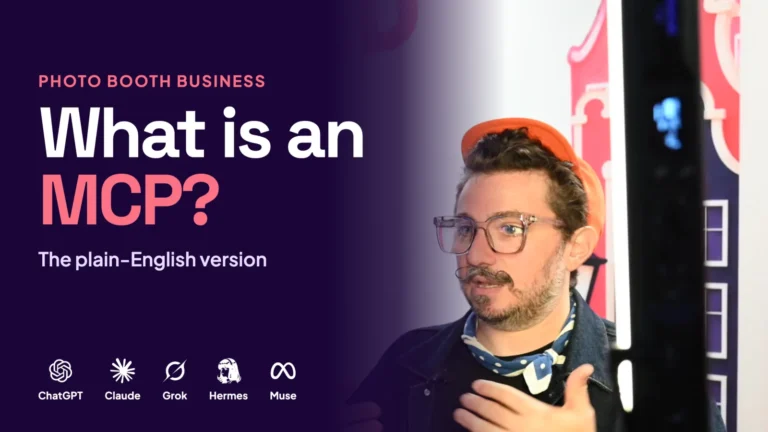
See it in action: we played the MCP explainer live on Show & Tell with the Illuminate co-founders, and four of the six operators who answered wanted to try it.
FAQ
What is an MCP server for photo booth software?
An MCP server lets an AI assistant connect to your photo booth software and use specific tools inside it. With the Pictor MCP server, an assistant like Claude can find your events, duplicate a past event for a new date, pull event stats and gallery items, and search your media library when you ask.
Does any photo booth software have an MCP server?
Pictor is the first photo booth software with an MCP server, based on our check of photo booth software vendors on September 30, 2026. Check Cherry offers one for its booking CRM, which is booking software rather than booth capture software.
Can ChatGPT or Claude manage my photo booth events?
With the Pictor MCP server connected, yes, within limits. The assistant can find events, duplicate events and create events from templates. It cannot delete anything unless you allow it, and it cannot buy marketplace items or send messages to clients. We built and tested it with Claude.
Can the Pictor MCP server delete my events?
No, not unless you allow it. In version 1, three tools make changes: duplicate_event, create_event_from_template and upsert_ai_prompt.
Do I need to know how to code to use Pictor MCP?
No coding. You add Pictor to your assistant once, using the connection details and personal access token we send when we switch it on for your account, along with setup steps. After that you ask for what you need in plain English.
Is Pictor MCP included in my plan?
Yes. The MCP server is included on every Pictor plan, including Basic, at no extra cost. AI actions use tokens the same way they do in the app.